Convert PDF page to JPG online free without watermark
PDFs are great for sharing documents, but many situations call for an image format. You might need a slide for a presentation, a preview for social media, or a format that opens without extra software. Converting PDF pages to JPG solves that. Yet free online converters often add distracting watermarks or demand an email sign-up.
PuraPDF offers a straightforward alternative. The PDF to JPG tool converts pages into high-resolution images right in your browser. There are no watermarks, no registration gates, and the output retains the clarity of the original. Here's how it works.
Why This Converter Works Without the Fuss
Before walking through the steps, it helps to know what distinguishes this tool from others:
- Watermark‑Free Output: Every converted JPG arrives clean. No branding or logos are overlaid on your content.
- Adjustable Quality: A slider lets you set JPG quality from 50% to 100%. Higher values give sharper images; lower values reduce file size.
- Page‑by‑Page Extraction: A multi‑page PDF turns into separate JPG files—one per page.
- Security Basics Covered: File transfers use TLS encryption. Files are deleted from the server after the job completes.
- Mobile Friendly: The same tool works on desktop browsers, tablets, and phones without app installs.
Before You Start
You'll only need:
- A PDF file (free usage handles files up to 50 MB).
- A web browser with an internet connection.
No software downloads. No account creation.
How to Convert PDF Pages to JPG (Without Watermarks)
Step 1: Open the Tool
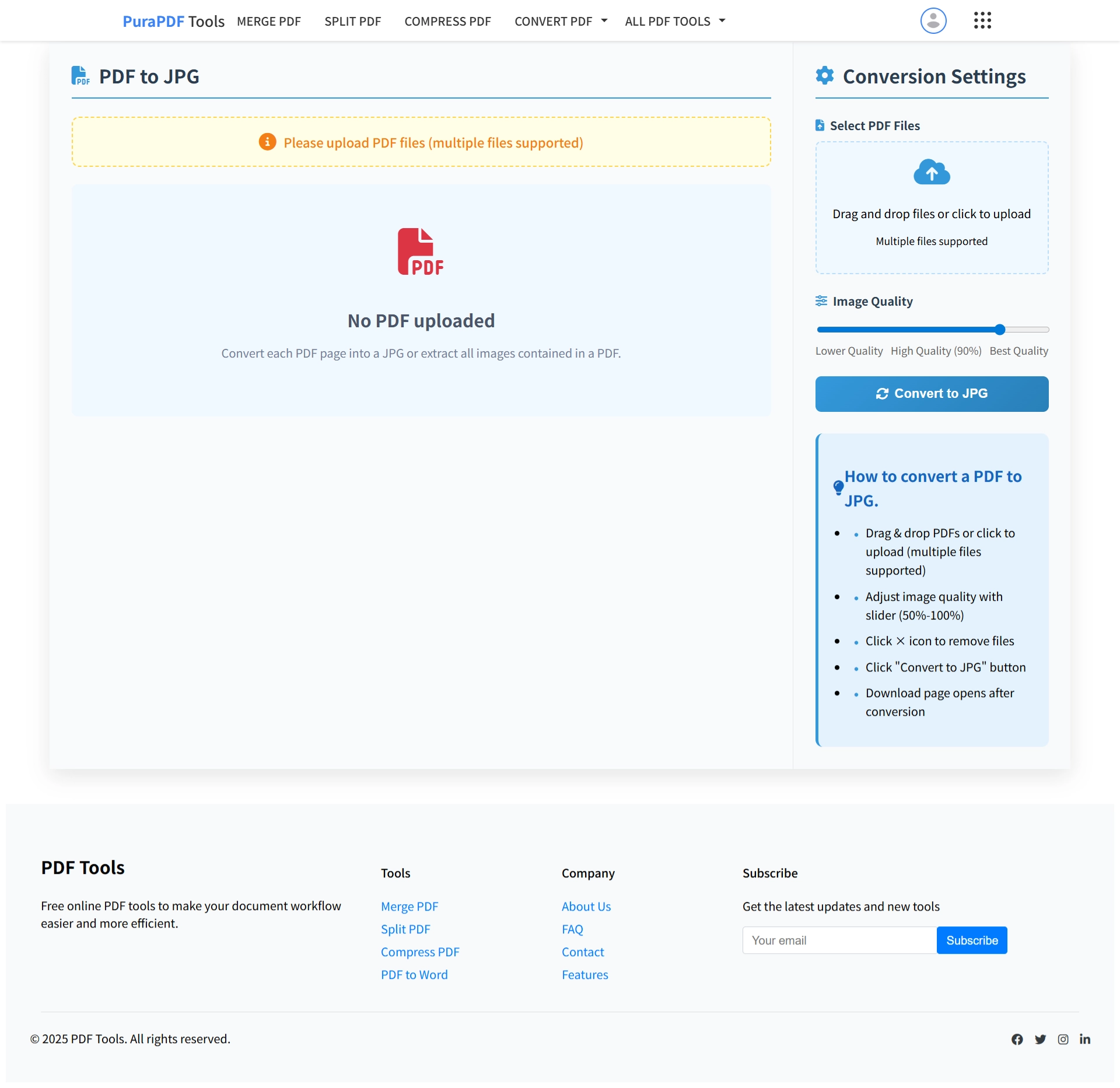
Go to the PuraPDF PDF to JPG page. The interface displays an upload area immediately.
Step 2: Upload Your PDF
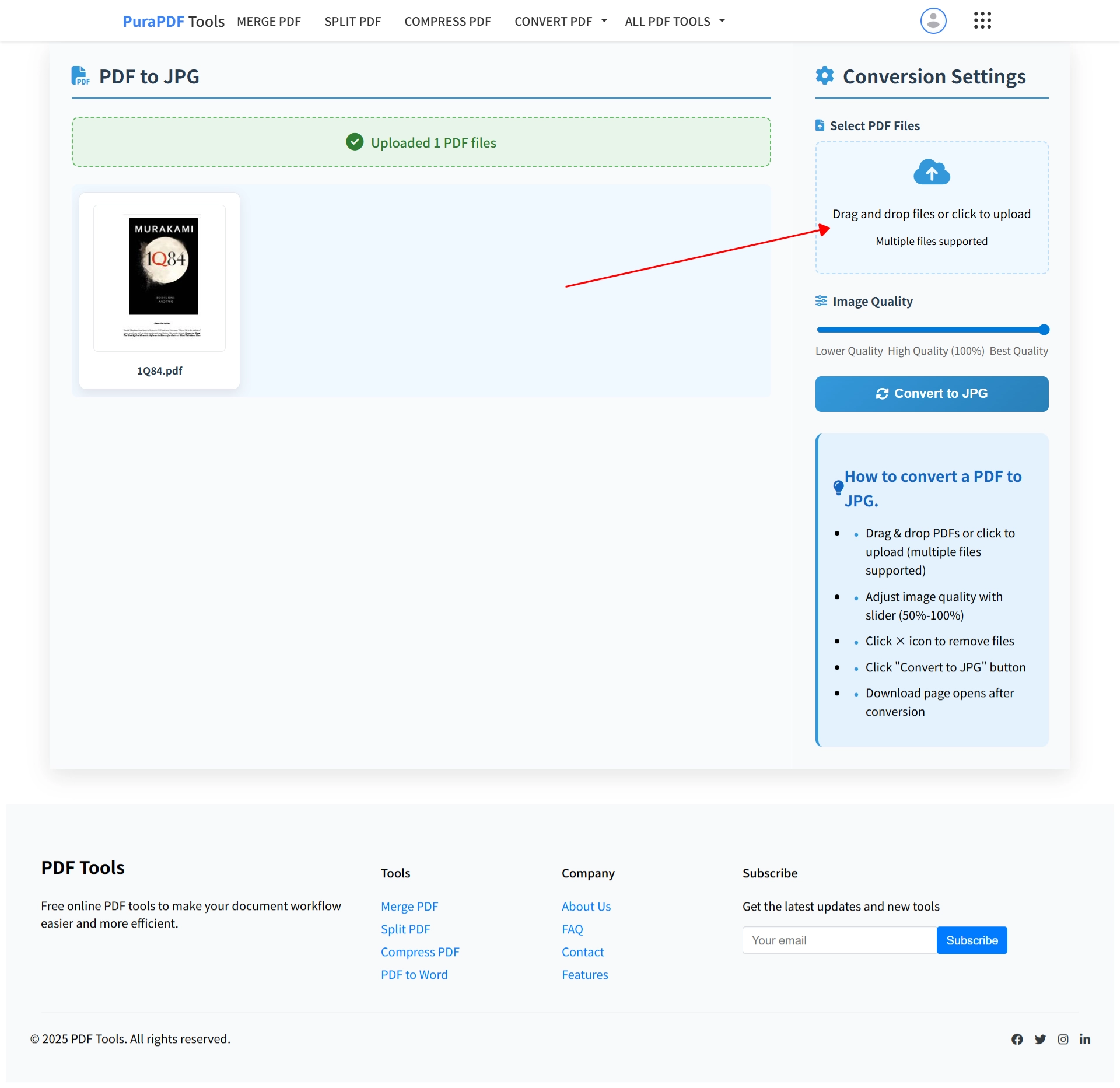
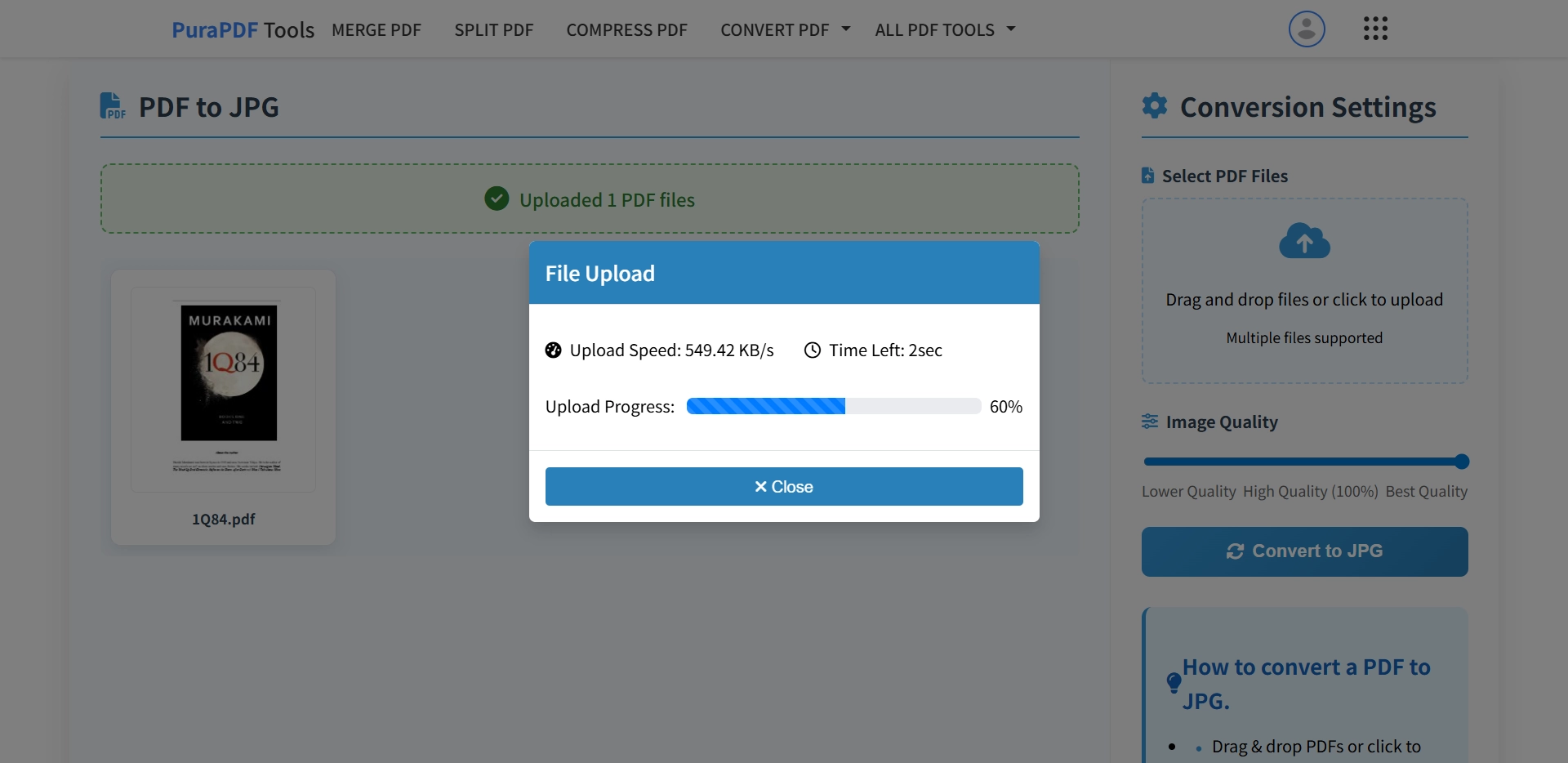
Drag your PDF onto the outlined area, or click to browse files stored on your device. The tool accepts multiple files sequentially.
Step 3: Set the JPG Quality
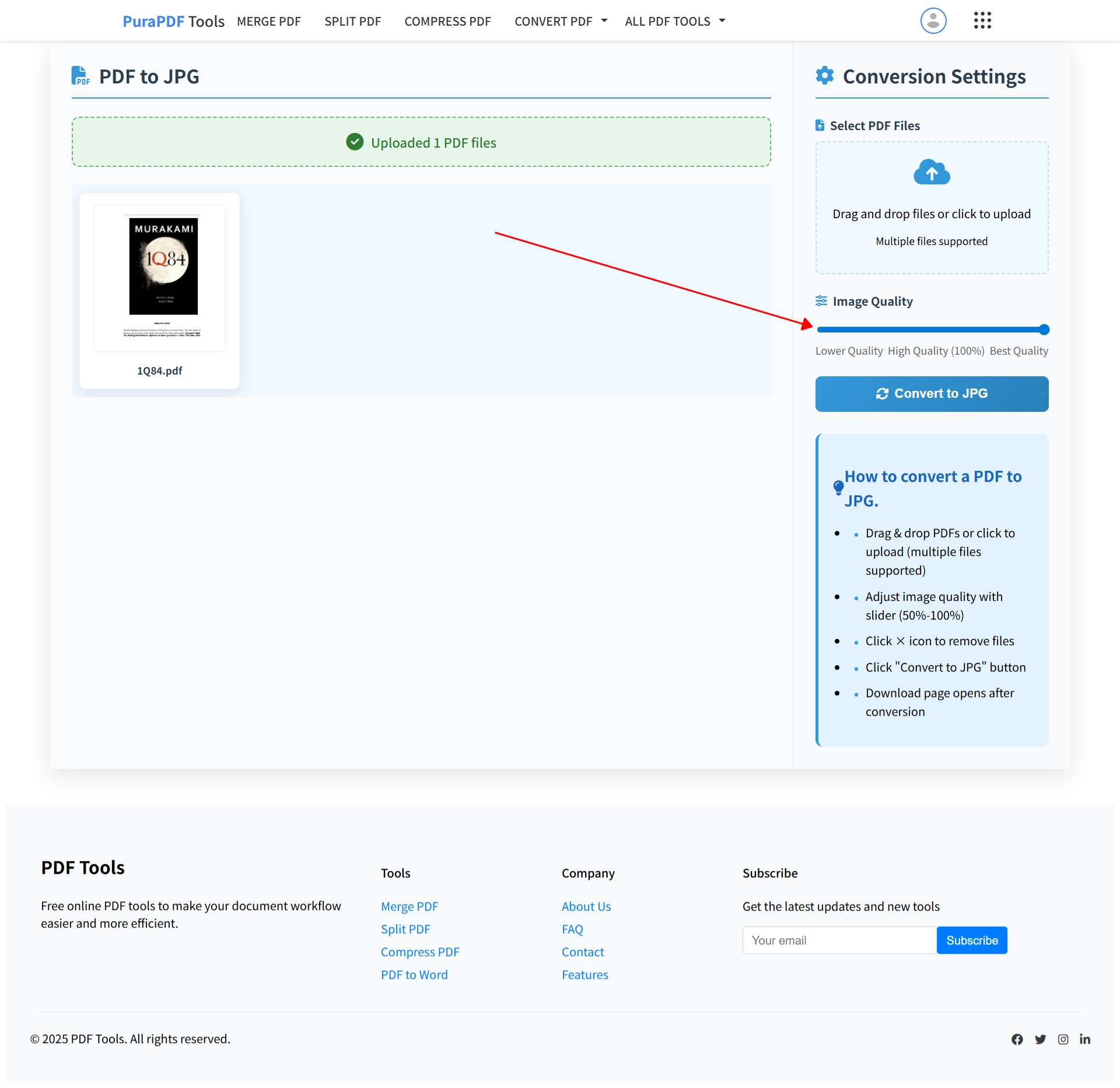
Move the slider to select a quality level between 50% and 100%. For most uses, 80–90% offers a practical balance of sharpness and file size.
Step 4: Start the Conversion
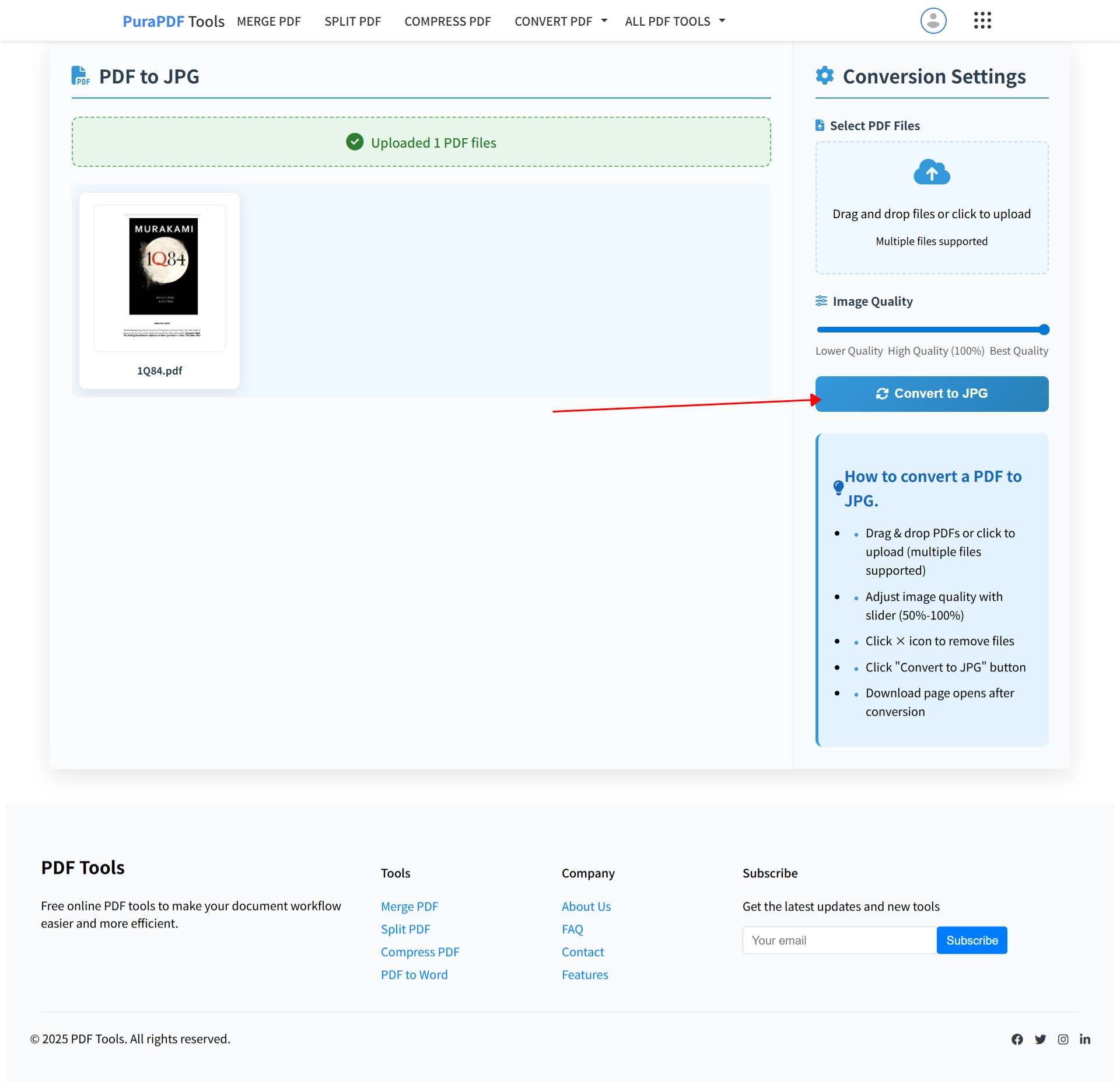
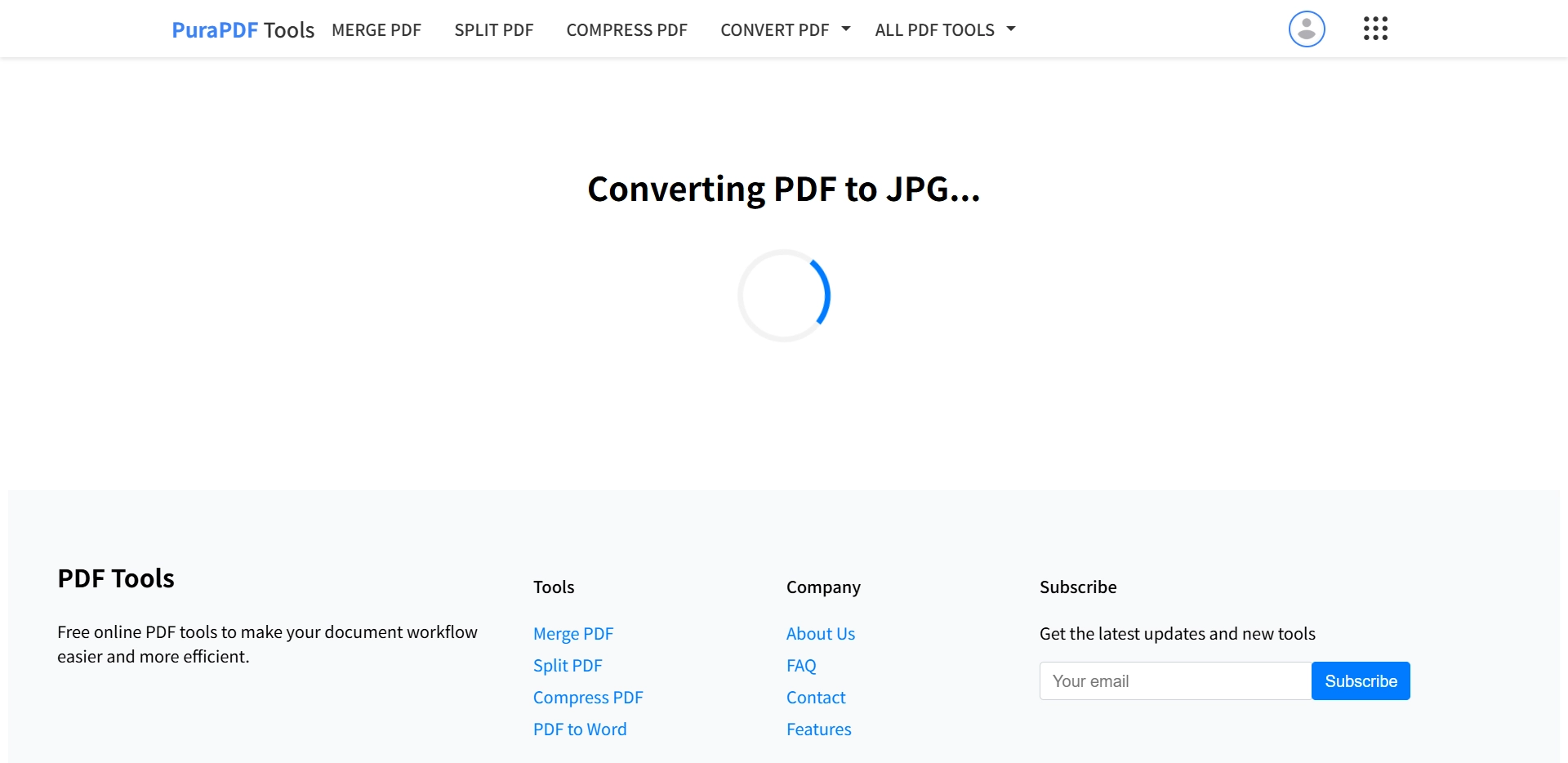
Click the Convert to JPG button. The page shows processing status. Each PDF page renders as an individual JPG.
Step 5: Download the JPG Files
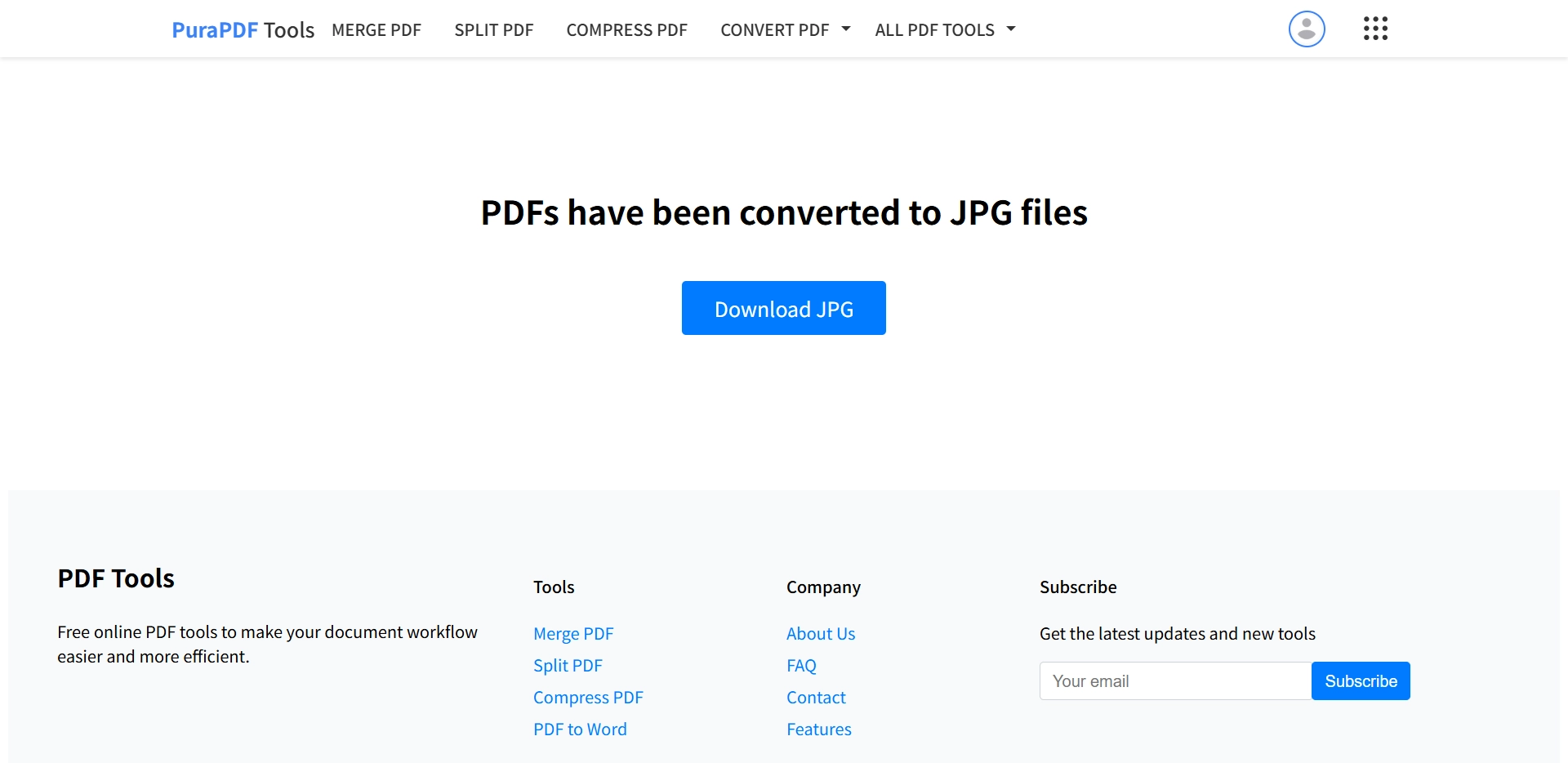
When processing finishes, a ZIP file containing the JPG images is prepared for download. Save it to your device. All images are watermark‑free.
A Few Notes on Getting Good Results
- Quality and Size: If you're posting on social media or sending via email, try 80% quality. It keeps file sizes reasonable while preserving legibility.
- Multi‑Page PDFs: Every page becomes its own JPG. If you need to combine images later, PuraPDF also has a free JPG to PDF tool.
- Scanned Documents: The converter respects the original scan resolution, so text in scanned pages remains readable.
Video Overview
A short video demonstrates the conversion workflow on both desktop and mobile.
Frequently Asked Questions
Does the PuraPDF PDF to JPG converter add watermarks?
No. The tool does not apply watermarks to output images.
What are the file size limits for free conversion?
The free web converter processes PDF files up to 50 MB per document. For larger files, paid tiers are listed on the pricing page.
How is the security of my files handled?
Uploads and downloads are encrypted via HTTPS. Temporary files are automatically deleted after conversion. PuraPDF's processes follow ISO/IEC 27001:2022 guidelines.
Can I use the converter on a smartphone or tablet?
Yes. The interface adjusts to smaller screens, and the upload function works with mobile file browsers.
Can I convert multiple PDFs in one session?
You can convert multiple PDFs one after another. Each file will generate its own set of JPG images.
What happens if my PDF is password protected?
If the PDF requires a password to open, the tool prompts for it before processing. The password is not retained after the session ends.
More Tools From PuraPDF
Standards & Compliance
PuraPDF is developed in alignment with internationally recognized standards to ensure reliable document rendering and robust information security practices.
- PDF Processing: Conforms to ISO 32000-2:2020 (Document management — Portable document format — Part 2: PDF 2.0). View official standard →[reference:0]
- Security Framework: Aligned with ISO/IEC 27001:2022 (Information security, cybersecurity and privacy protection — Information security management systems — Requirements). View official standard →[reference:1]