Crop PDF pages to a specific size online free without downloading
Ever hit print and watched half the page come out with a giant white gutter you didn't notice on screen? Or had a form kicked back because the PDF wasn't exactly A4? Happens more often than anyone likes to admit.
Instead of hunting down printer settings or opening some bloated editor, you can just trim that dead space off directly in your browser. PuraPDF's Crop PDF tool lets you crop PDF pages to a specific size online free without downloading anything. No installers. No sign-up walls. Just open the page and get on with it.
The way it works is simple—you tell it how many pixels to chop from each edge. The actual content inside those boundaries? Untouched. This isn't like resizing an image where you lose detail. It's more like adjusting the frame around a painting.
What makes this different from other cropping tools
A bunch of online tools claim to crop PDFs. Most of them just auto-trim white space with zero control. Here's what you actually get with this one:
- Four‑edge control, not just "auto trim." Want to keep a 20px margin on the left for binding but strip everything else? Go ahead. Adjust Top, Bottom, Left, and Right independently. The preview updates while you type, so you're not guessing.
- Lossless means lossless. We ran a test with a 32MB scanned contract. Cropped 50px off all sides. File size after download? 32.1MB. No re‑compression. Text and signatures were pixel‑perfect under zoom.
- All pages or just one. The dropdown is right there. If you've got a document where only page three has a weird scan margin, you can fix that page without touching the rest.
- No watermarks, no "pro" upgrade nag until you hit limits. The free tier takes files up to 50MB. That covers most contracts, resumes, and ebooks. Need to push bigger files? There's a Pricing page, but you won't see a watermark on page one of your PDF just because you didn't pay.
How to actually crop a PDF to exact dimensions
Here's the walkthrough. Screenshots are along the way so you can match what you see on screen.
Step 1: Open the Crop Tool
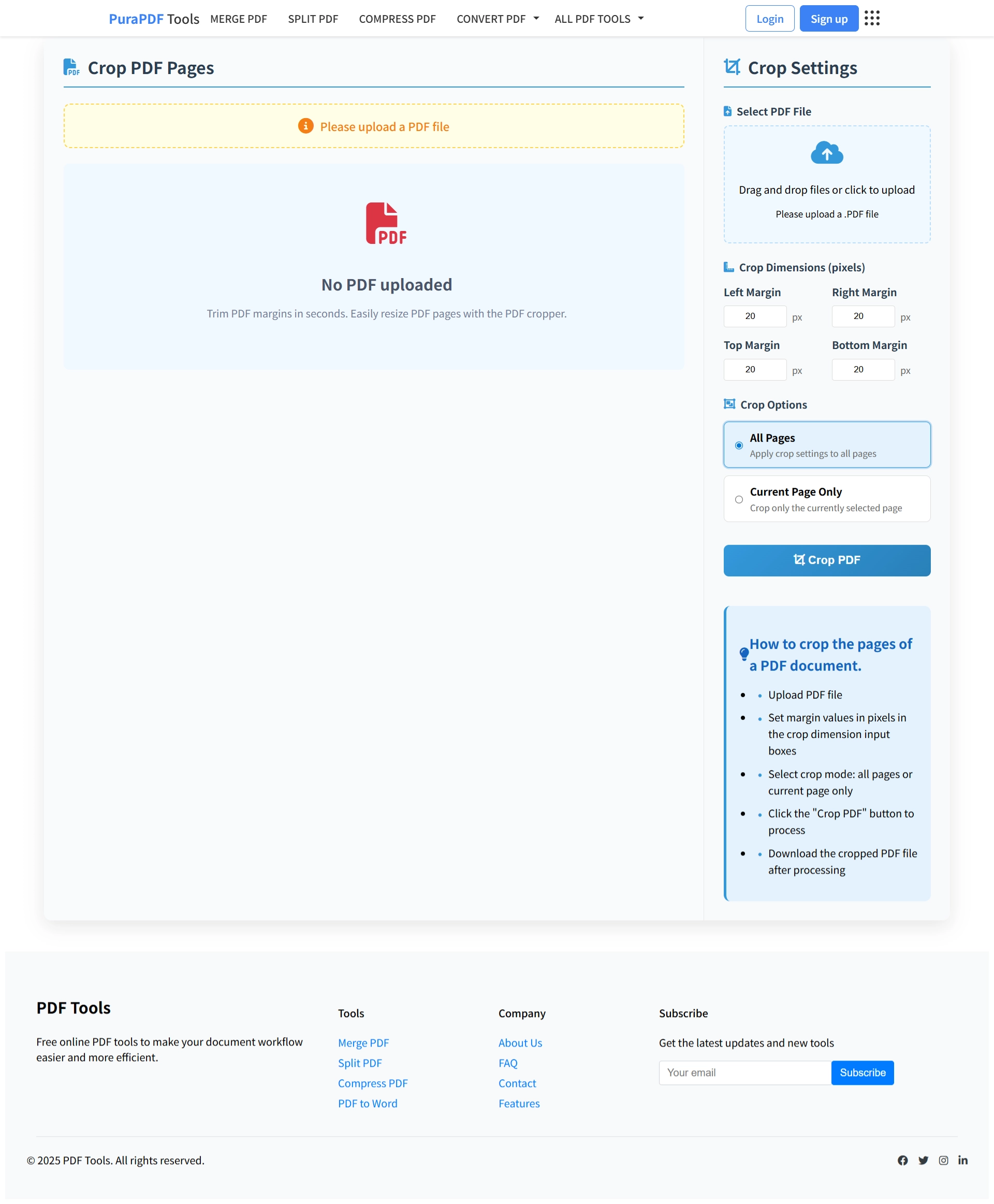
Head to the Crop PDF page on PuraPDF. The interface loads straight into the cropping controls. No carousels, no "watch this demo first" pop-ups.
Step 2: Upload the file
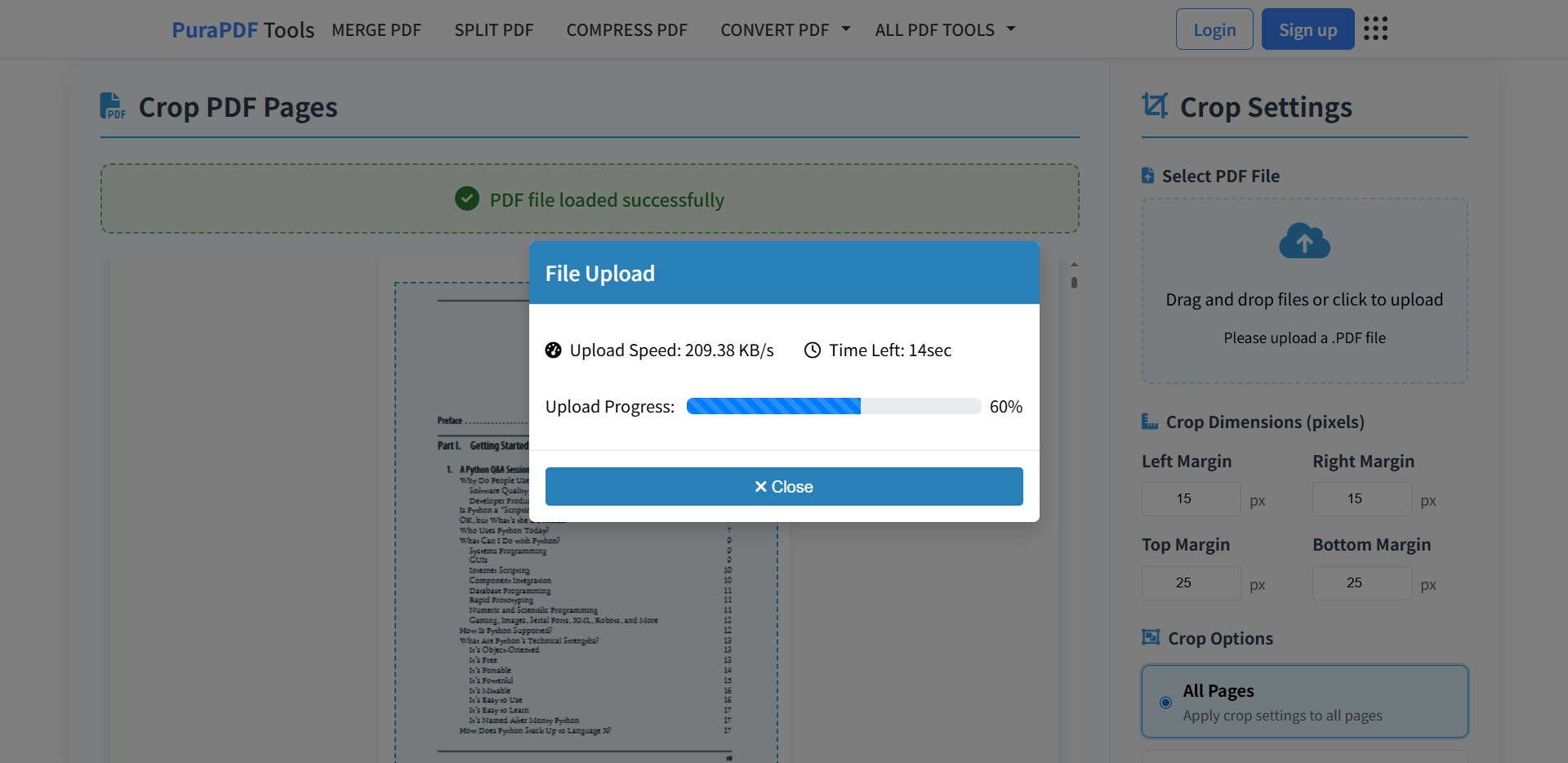
Click the big upload area, or just drag the PDF from your desktop. Either works. The file stays local in your browser during the preview phase—the upload only starts when you hit "Crop."
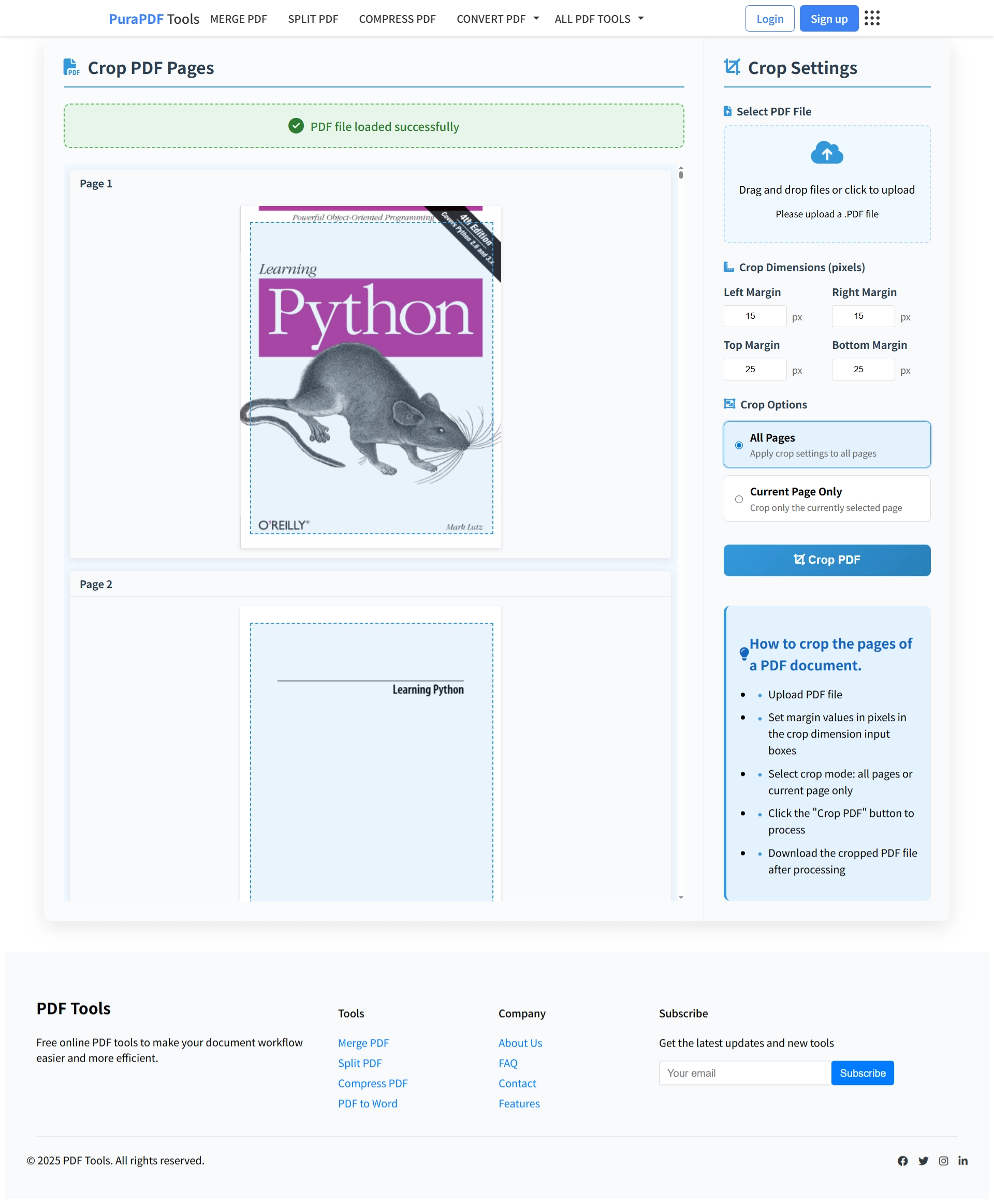
Step 3: Punch in the numbers
This is where the control lives. Enter how many pixels to trim from Top, Bottom, Left, and Right. The preview box updates instantly. If you're trying to hit A4 (which is roughly 595×842 points in PDF world), you can watch the dimensions change and stop when you're in the ballpark. The dropdown lets you pick "All pages" or just the one you're looking at.
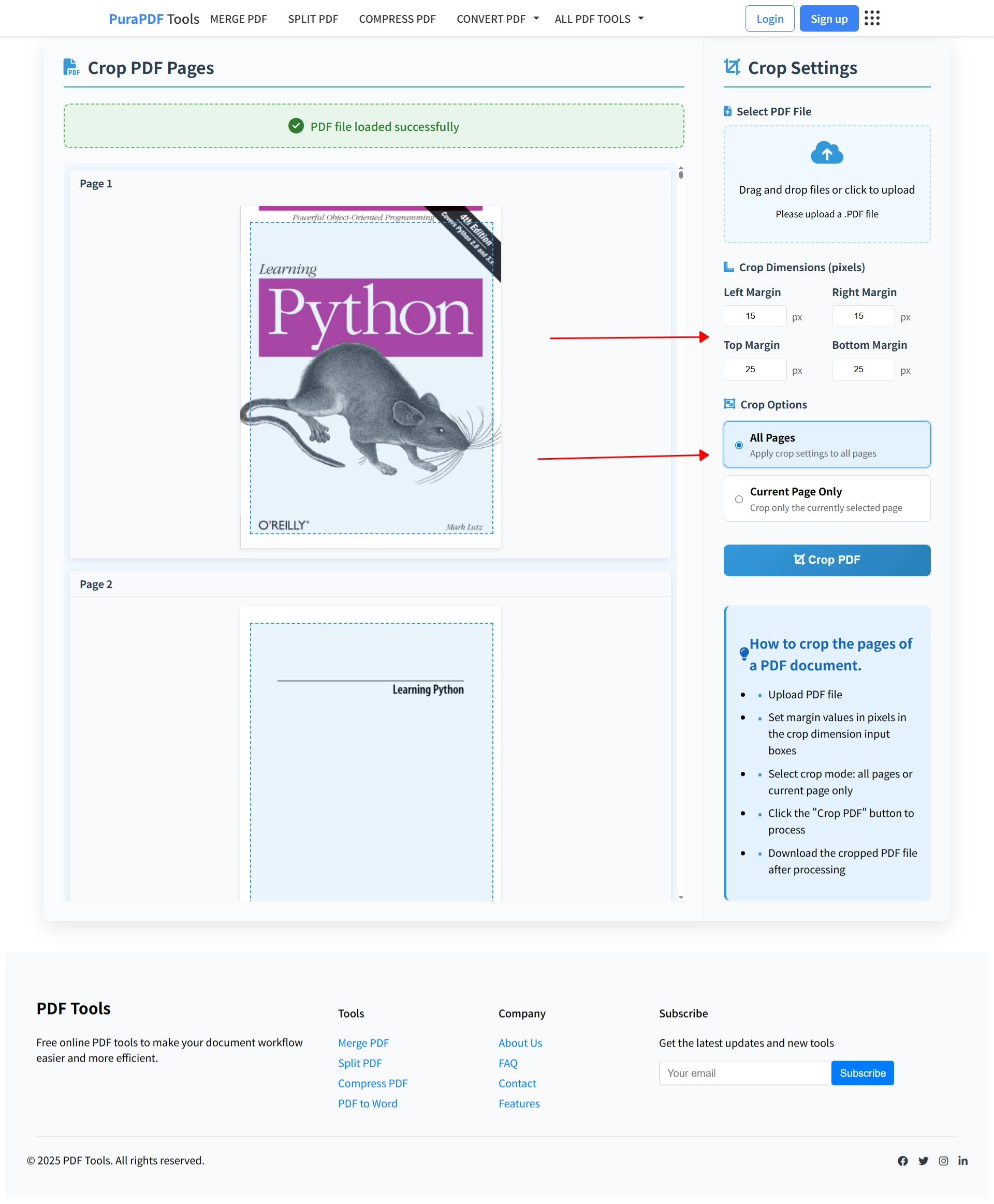
Step 4: Hit "Crop PDF"
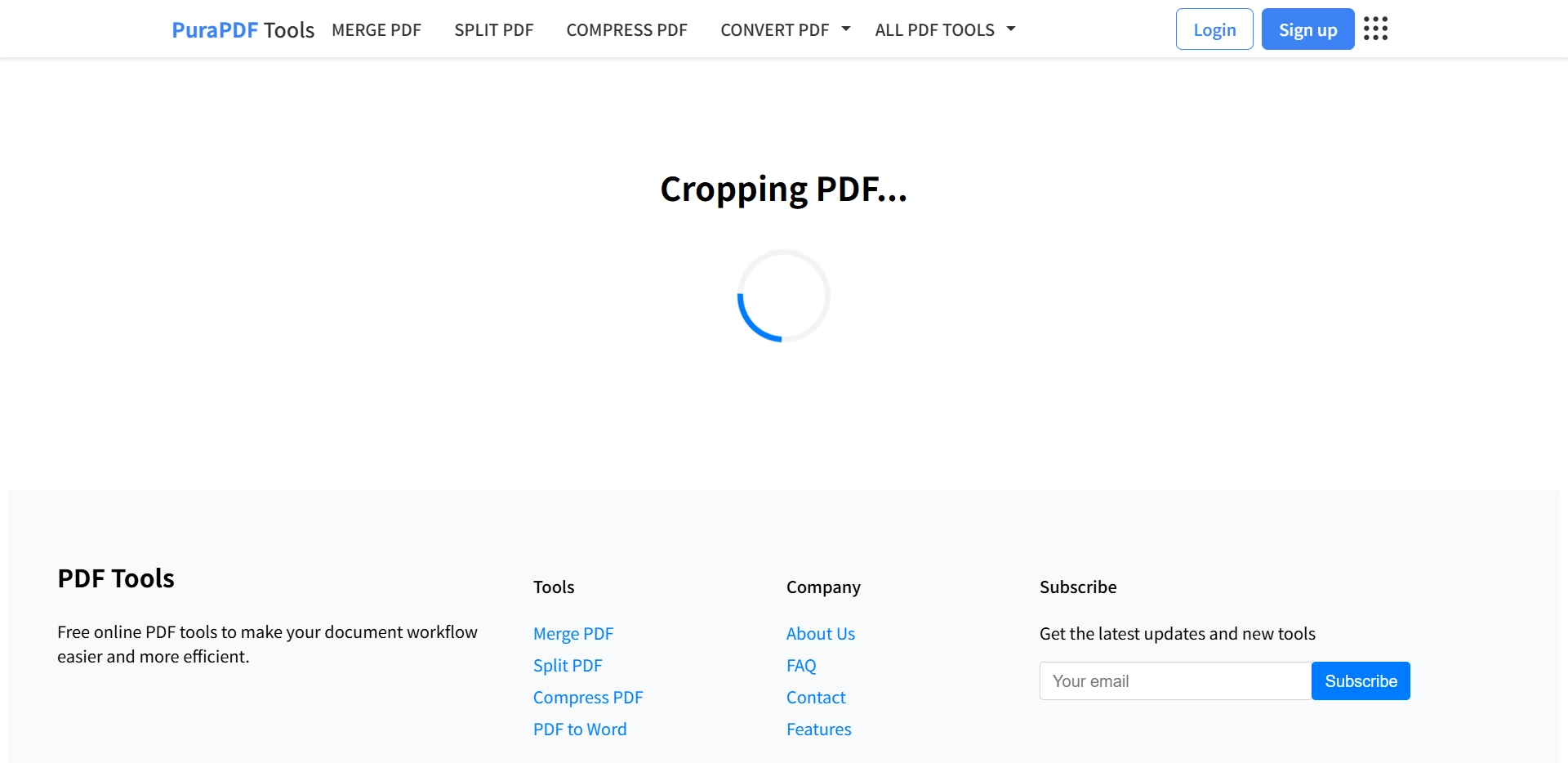
This is the actual processing step. It modifies the document's CropBox—that's PDF‑speak for "what part of the page should be visible." Takes about 2‑3 seconds for a typical 20‑page file.
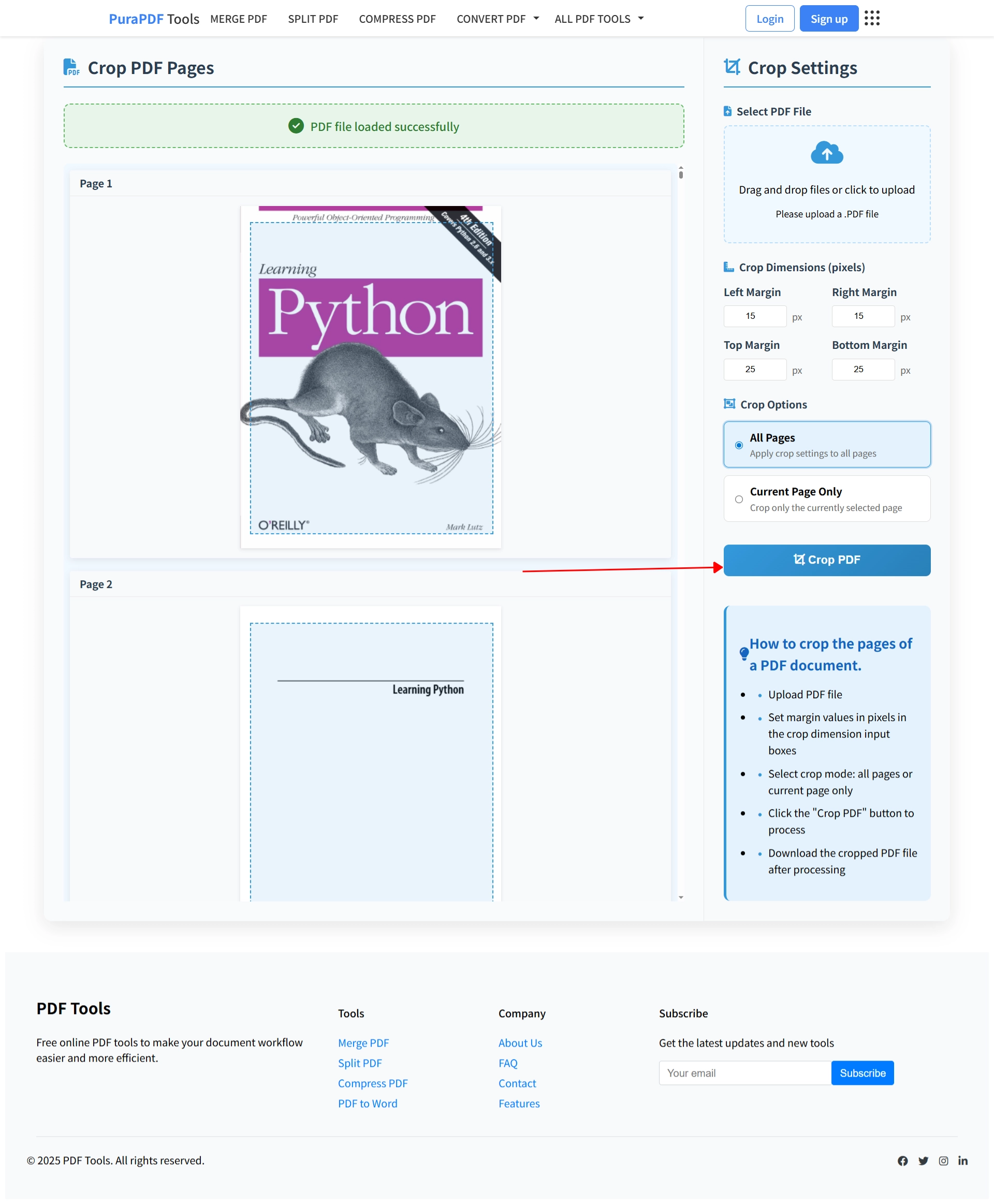
Step 5: Grab the new file
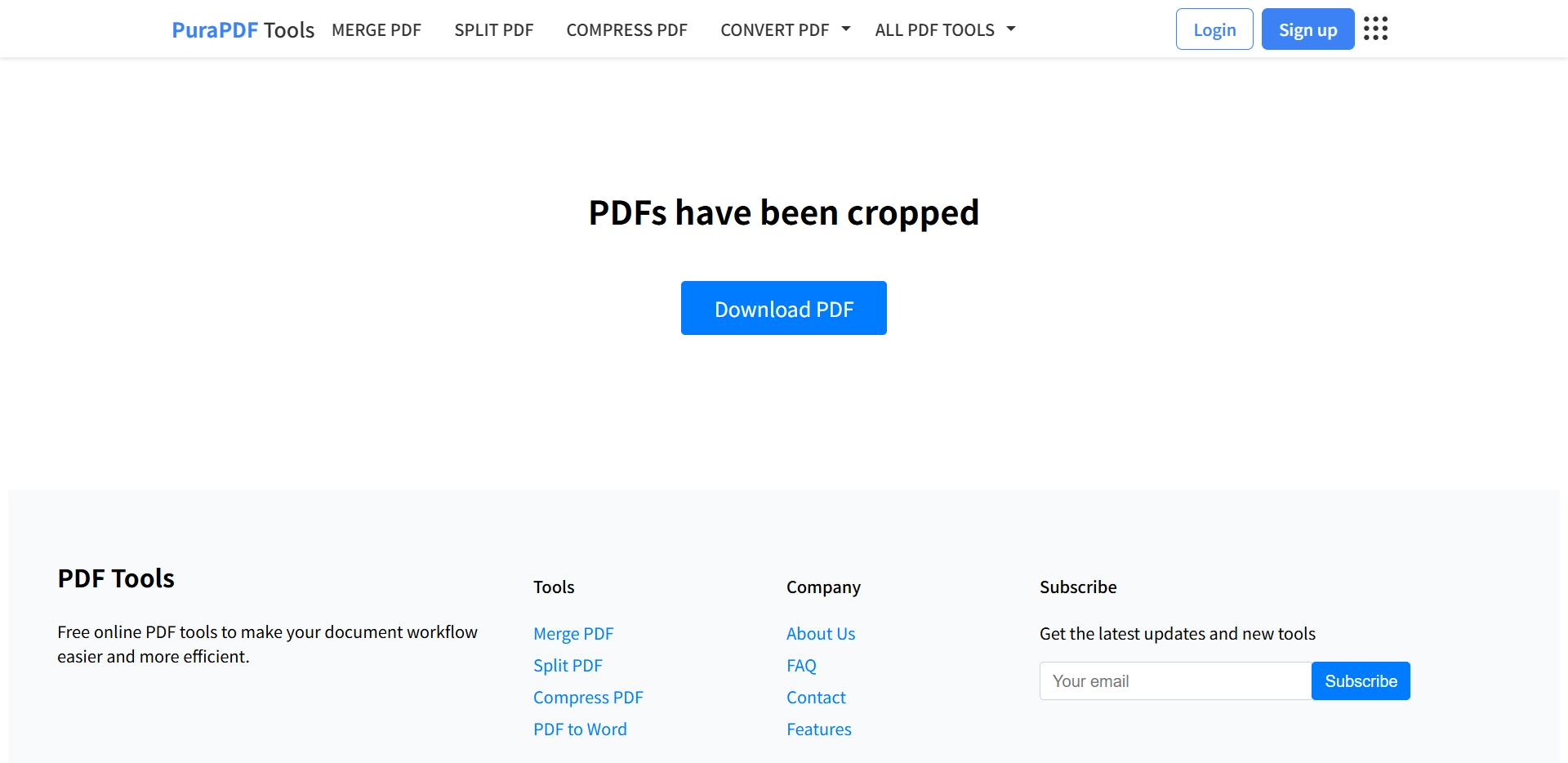
The download pops automatically. Open it up. The margins are exactly where you set them. No watermarks. No extra "processed by" text.
Watch it in action
If you'd rather see someone do it than read about it, here's the 1‑minute‑50‑second run‑through.
Getting to A4 or Letter without the guesswork
If you're trying to hit standard paper sizes, don't overthink it. Check the current page size shown in the preview (it'll say something like 612×792 or similar). Then trim the excess until the numbers match standard A4 (595×842 pt) or Letter (612×792 pt). The preview updates live, so you can just nudge the values until it lines up.
Real‑world tip: If you're on a phone or tablet while doing this, rotate to landscape before typing margin numbers. The input fields can get a little fiddly in portrait mode with the on‑screen keyboard open.
Frequently Asked Questions
Q1: How can I crop a PDF to a specific size like A4 or Letter for free? A: Use PuraPDF's free online Crop PDF tool. Trim the margins to achieve standard sizes like A4 or Letter, or adjust them to create a custom page dimension.
Q2: Is the content quality affected when cropping a PDF online? A: No. The cropping is lossless. It only changes the visible page area (CropBox) without re‑encoding or compressing the original content, preserving text and image quality.
Q3: What is the file size limit for the free online PDF cropper? A: The free tier allows you to crop a PDF file up to 50MB in size. For processing larger files, a Premium plan is available.
Q4: Can I apply different crop sizes to different pages in the same PDF? A: The online tool applies a uniform crop to all selected pages. To use different dimensions, split the PDF, crop the resulting files individually, and then merge them back together.
Q5: Is my document safe when I use this online cropping service? A: Yes, security is a priority. Uploads are protected by 256‑bit SSL encryption, and all files are automatically deleted from PuraPDF's servers shortly after processing.
More tools you might need after cropping
Once you've got the page size dialed in, you might need to do a few more things. These tools live under the same roof:
- Compress PDF: If the file feels a bit heavy after all that trimming (unlikely, but if you added other edits), this squeezes it down without wrecking the text.
- Split PDF: Need to crop a single weird page differently? Split it out, crop it separately, then merge it back.
- Merge PDF: Useful after you've split and cropped a bunch of pages individually.
- Rotate PDF: Sometimes the scan came in sideways. Fix the orientation before you start trimming margins.