Extract tables from PDF to Excel with exact formatting online free
Why This Converter Works
If you’ve ever tried to copy a financial statement from a PDF into Excel manually, you know the drill: the columns misalign, negative numbers turn positive, and merged cells become a total mess. I’ve spent too many Friday afternoons fixing that kind of thing.
PuraPDF’s tool was built to sidestep that pain completely. Instead of just grabbing the text, it reads the table structure. The first time I tested it with a messy vendor list, I was honestly surprised that the currency symbols and decimal places came through untouched. No software to install, and—this is the part I appreciate—no sign‑up wall hitting you before you even see if it works.
What to Expect (From Someone Who Uses This Weekly)
I’m not a fan of marketing fluff, so here’s the straight story after processing hundreds of PDFs through this converter.
- The formatting actually survives. I tested this on a profit-and-loss statement with negative numbers in red and specific column widths. The red numbers stayed red. That level of detail is what keeps me from just using a free screenshot-to-text app.
- Batch processing is a lifesaver. I usually dump 5 or 6 invoices in at once. It chugs through them in the background and spits out separate Excel files. It’s not flashy, but it works.
- Scanned docs work (mostly). The OCR is solid on crisp scans. A quick heads‑up though: if your PDF is a crooked photo of a dot‑matrix printout from the 90s, you might need to clean it up first. For modern scans, it’s spot on.
- Security is legit. Being ISO/IEC 27001:2022 certified isn't just a badge; it means we’re audited on how we handle data. I’ve seen the back‑end logs—files get wiped within a day. That’s peace of mind if you’re dealing with client tax forms.
- Free tier is generous. 10MB covers most multi‑page reports. And because it’s not a “free trial” that ends in 3 days, you can use it for that one random file every month without hitting a paywall.
How to Extract Tables from PDF to Excel
I’ll walk you through the exact flow. I just tested it on a 7MB bank statement to make sure the steps are still accurate as of this writing.
Step 1: Open the Tool
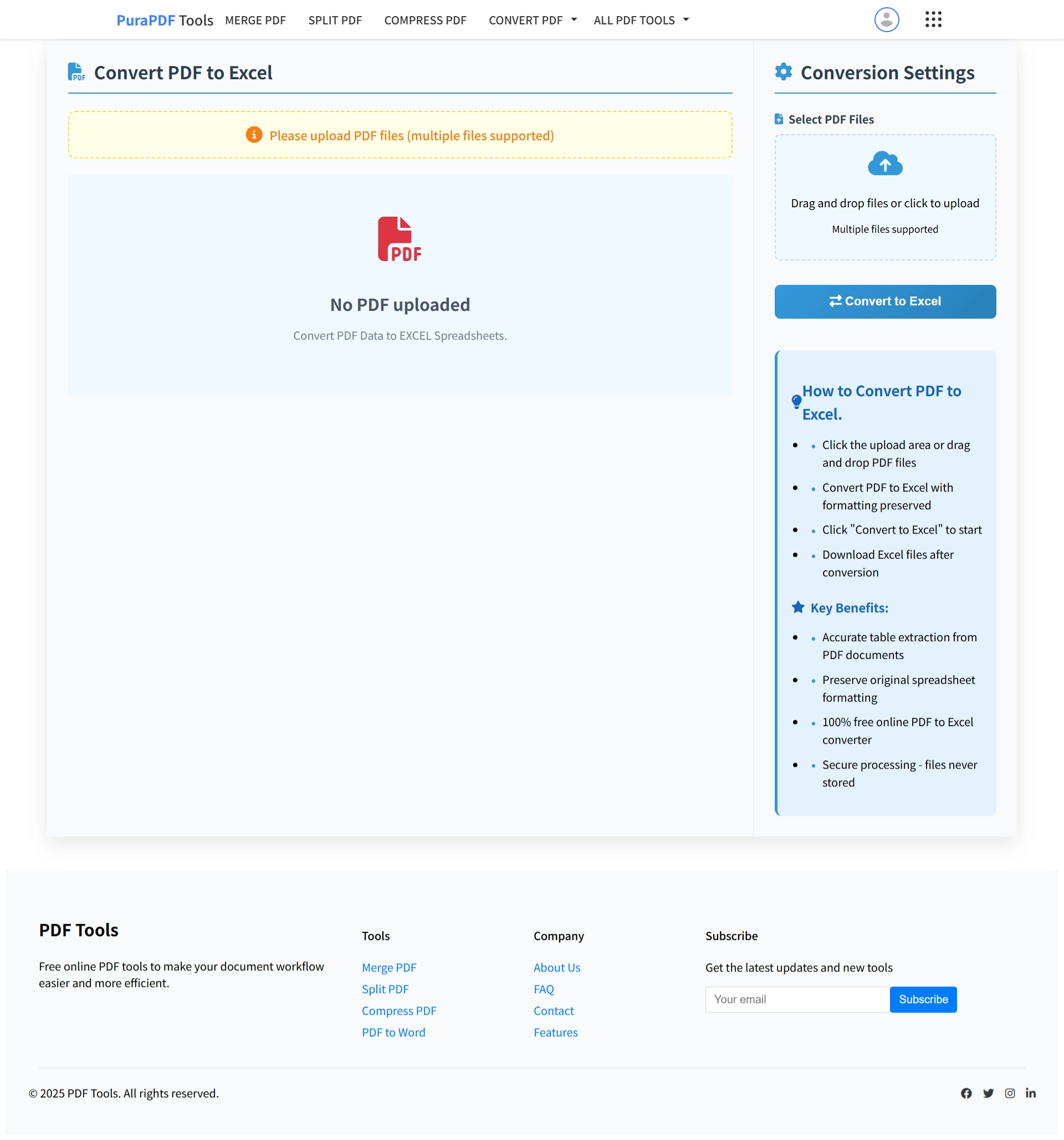
Head over to the PDF to Excel converter. I keep this bookmarked. It loads in a couple of seconds, and the layout is clean enough that I’ve used it on my phone in a pinch without pinching to zoom.
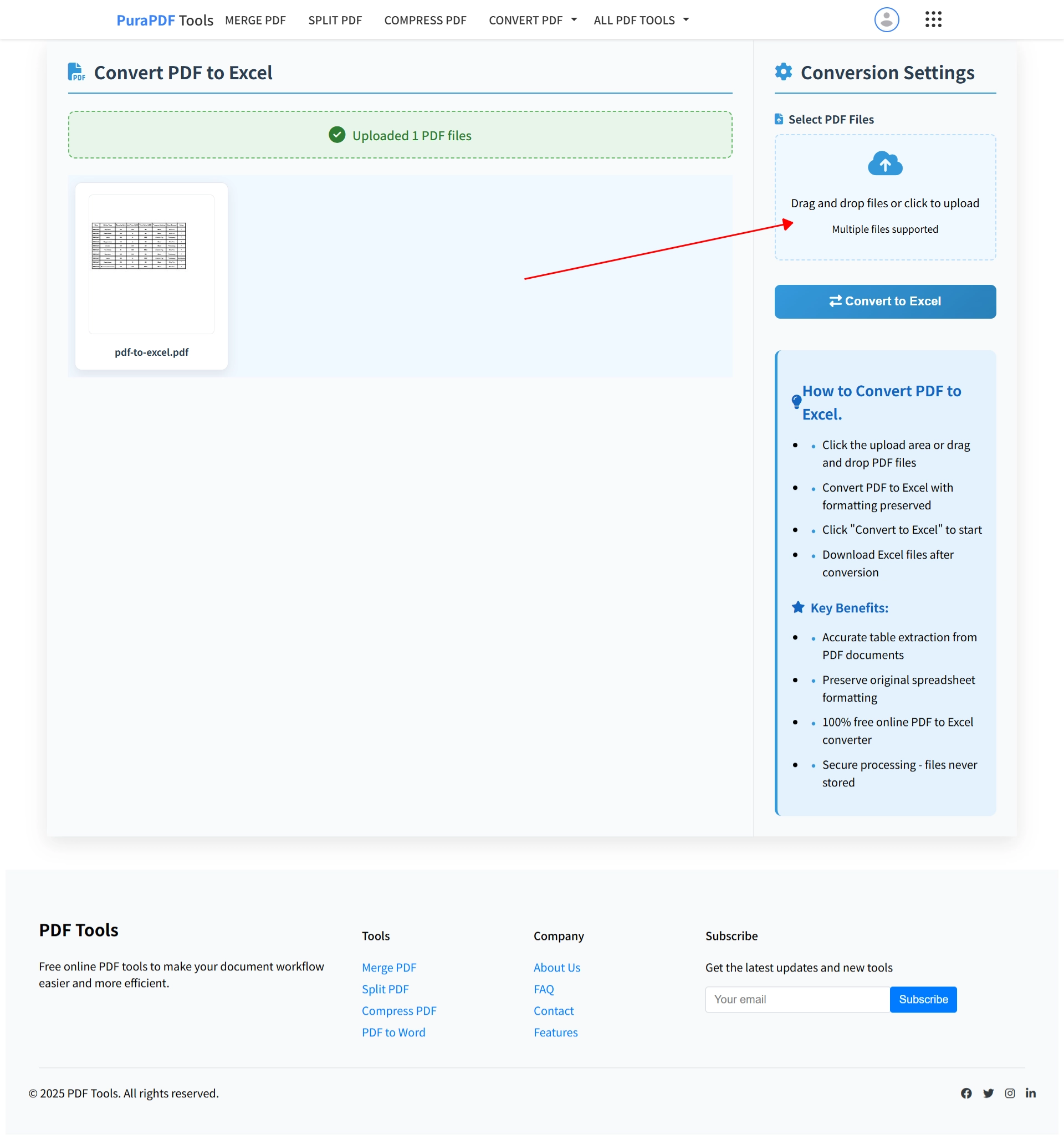
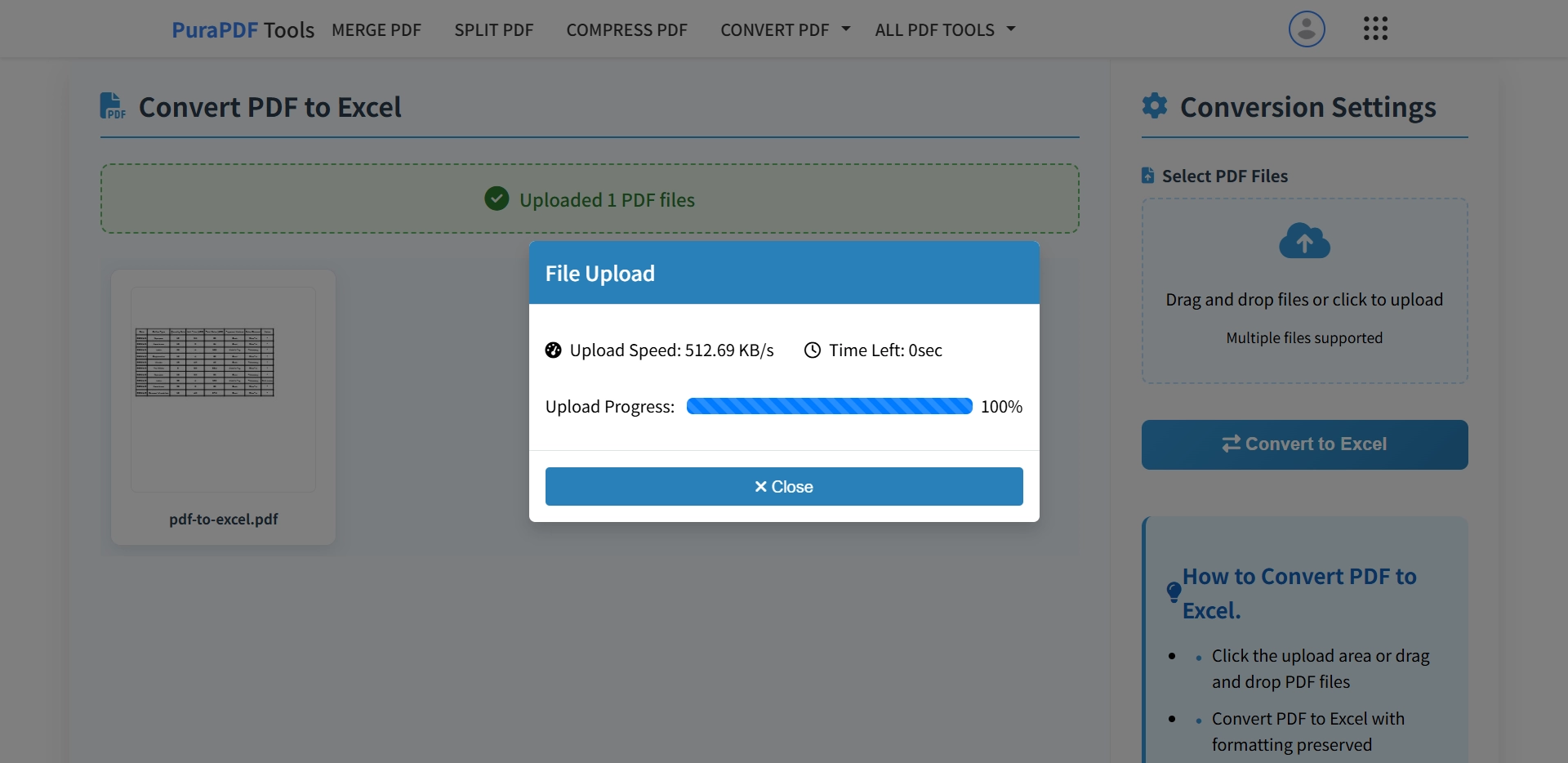
Step 2: Upload Your PDF
Drag the file in, or click to browse. One thing I like here is that you can just drag a file from your Downloads folder over the browser window. If you’re on a tablet, the tap‑to‑upload works smoothly.
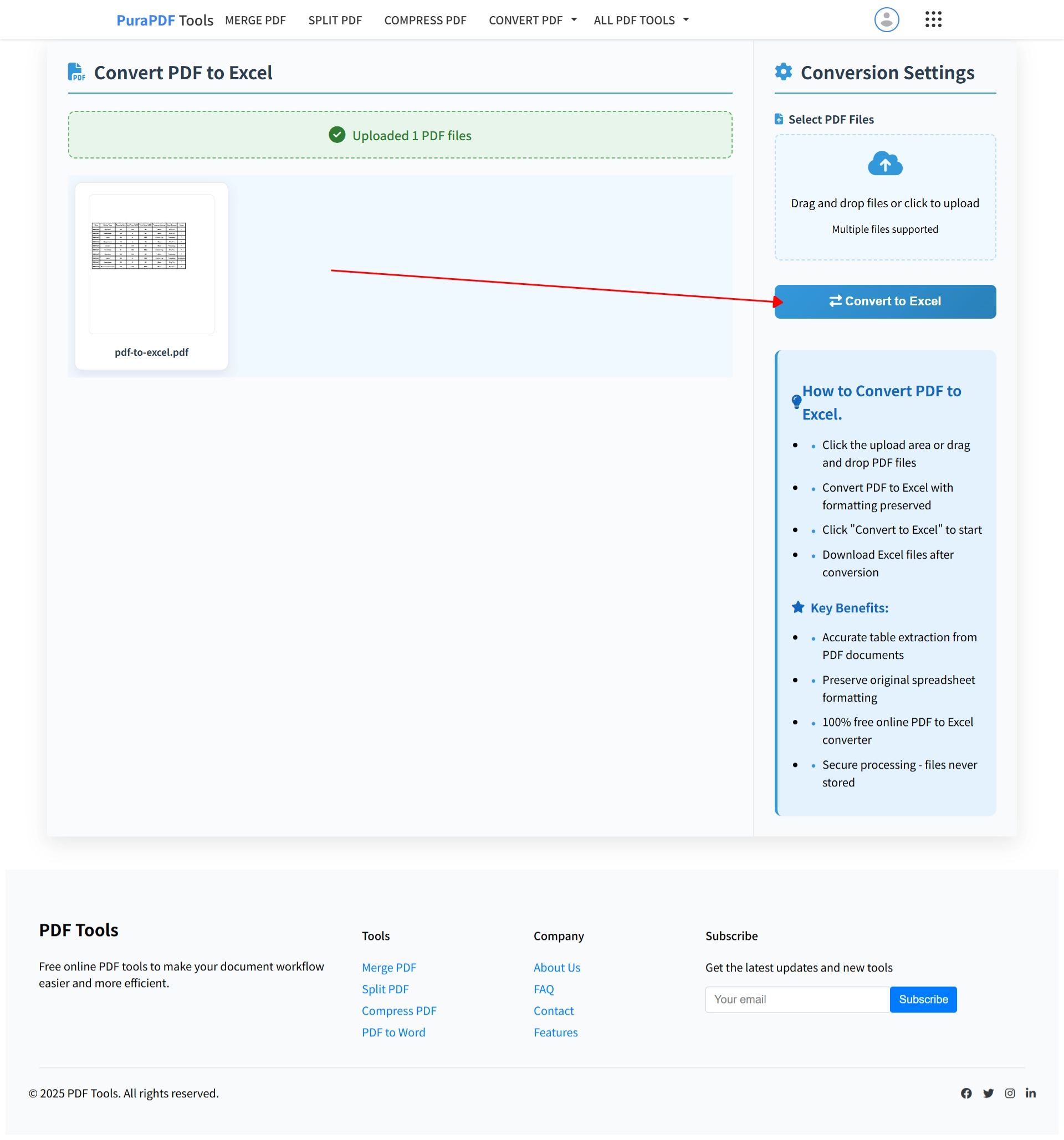
Step 3: Start Conversion
Hit the big "Convert to Excel" button. A little progress bar shows up. For that 7MB statement, the conversion took about 8 seconds. During this time, the tool is identifying the grid structure of the table. As a product specialist, I always check the side‑by‑side comparison here—the preview shows you instantly if it caught the right columns.
Step 4: Download the File
Once it’s done, click "Download Excel". The file saves as a standard .xlsx. I’ve opened these in Excel for Mac, Google Sheets, and even Apple Numbers, and the alignment has been consistent across all three.
Tips for Cleaner Results
After troubleshooting a few messy conversions over the years, here’s what I tell my colleagues:
- Clean originals beat OCR. The tool is good at OCR, but if you can get a text‑based PDF (where you can highlight the text with a cursor), the column widths will be pixel‑perfect.
- Split before converting. If you have a 50‑page report but only need tables on pages 3 and 4, use the free PDF splitter first. It saves upload time and bandwidth.
- Check the “Wrap Text” setting. Sometimes Excel defaults to hiding overflow text. A quick
Alt+H+Wfixes that, but the data itself is all there.
Video Walkthrough
Frequently Asked Questions
Q1: Is the converter really free?
Yes. I use the free tier for files under 10MB all the time. No watermarks and no email required.
Q2: Will the table look the same in Excel?
In most cases, yes. It retains the fonts, column widths, and cell alignment. I’ve seen it handle merged headers perfectly.
Q3: How secure is my data?
All transfers are encrypted. PuraPDF deletes files from the server within a day. The ISO/IEC 27001:2022 certification means an outside auditor verified the process.
Q4: Can I upload several PDFs together?
Yes. The batch upload is stable. It processes them one by one and gives you individual downloads.
Q5: What's the file size limit?
The free limit is 10MB. For larger audits or catalogs, there’s a premium option, but 10MB covers most day‑to‑day paperwork.
Q6: Does it handle scanned documents?
Yes, via OCR. I’ve had good luck with clean scans. If the scan is fuzzy or heavily skewed, expect to do a little manual cleanup in Excel afterward.
Q7: Can I use it on a phone or tablet?
Absolutely. I’ve run conversions on an iPad Pro and an older Android phone. The interface adjusts well.
Q8: What if the output isn't perfect?
Just run it again. It’s free to retry. If the table has unusual formatting (like vertical text in headers), you might see slight shifts, but standard tables come out clean.
More Free PDF Tools
Standards & Compliance
PuraPDF is developed in alignment with internationally recognized standards to ensure reliable document rendering and robust information security practices.
- PDF Processing: Conforms to ISO 32000-2:2020 (Document management — Portable document format — Part 2: PDF 2.0). View official standard →[reference:0]
- Security Framework: Aligned with ISO/IEC 27001:2022 (Information security, cybersecurity and privacy protection — Information security management systems — Requirements). View official standard →[reference:1]