How to Convert PDF to Word Online Free Without a Watermark
Why Use a Free Online PDF to Word Converter?
Editing a PDF directly often leads to formatting issues—text boxes shift, fonts change, or the layout breaks entirely. Many online services offer a solution, but they frequently place a watermark across the exported file or require a paid subscription before downloading.
For users who need a straightforward way to extract editable text from a fixed document, a clean conversion is essential. PuraPDF's tool produces a standard DOCX file without adding branding, watermarks, or trial limitations. No email registration is required to access the result.
How to Convert PDF to Word Online Free Without a Watermark
The process consists of four clear steps. Most files complete conversion in under 30 seconds, depending on file size and server load.
1. Navigate to the Converter Page
The tool operates entirely within a web browser. There is no need to install additional desktop software. You can bookmark the page or locate it by searching for "PuraPDF PDF to Word."
2. Select and Upload the PDF
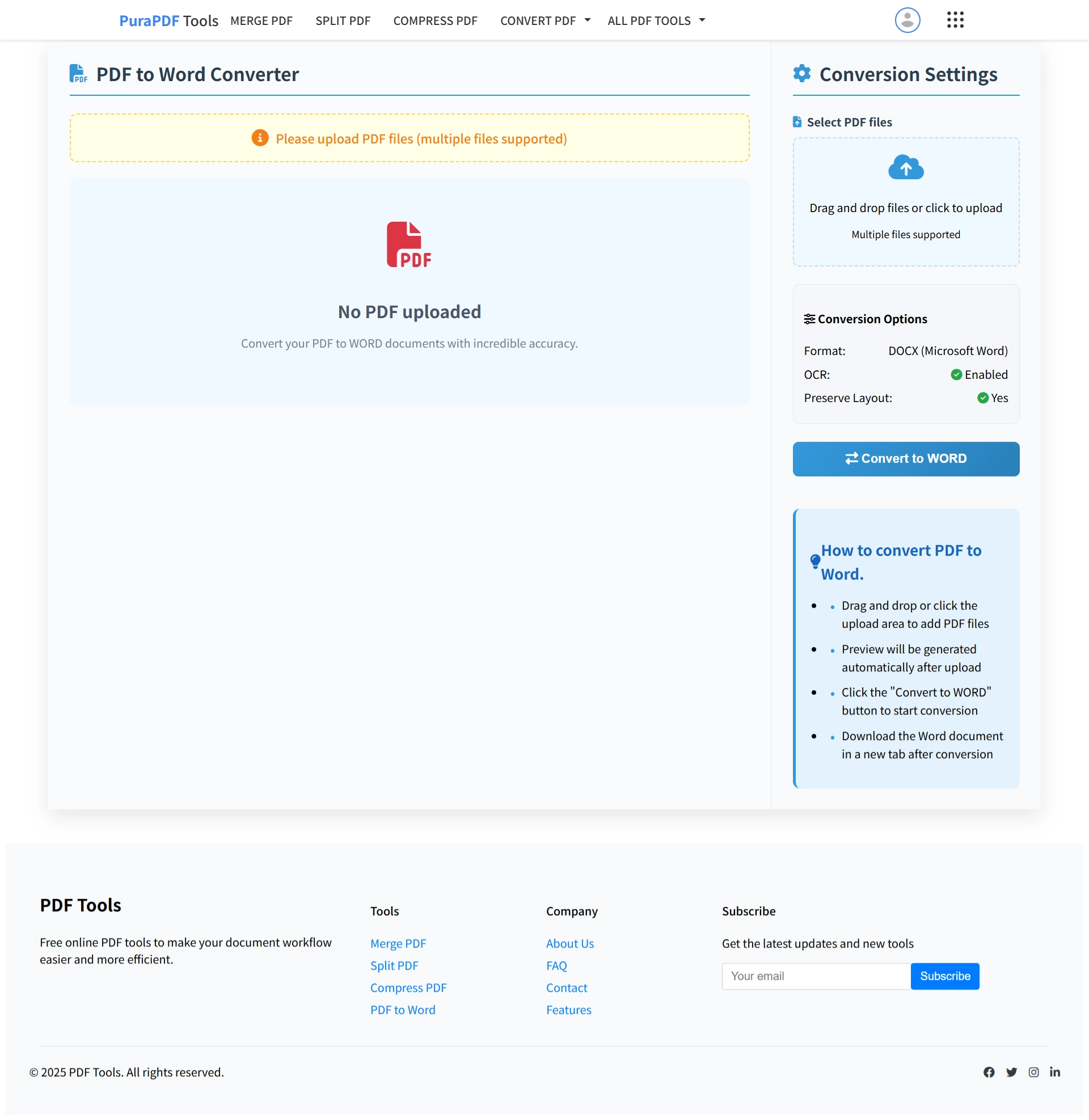
You can drag the file from a folder and drop it onto the upload area, or click to browse local directories. A preview of the first page will display automatically once the upload completes. This preview helps confirm you have selected the correct document, especially when file names are similar.
3. Initiate the Conversion
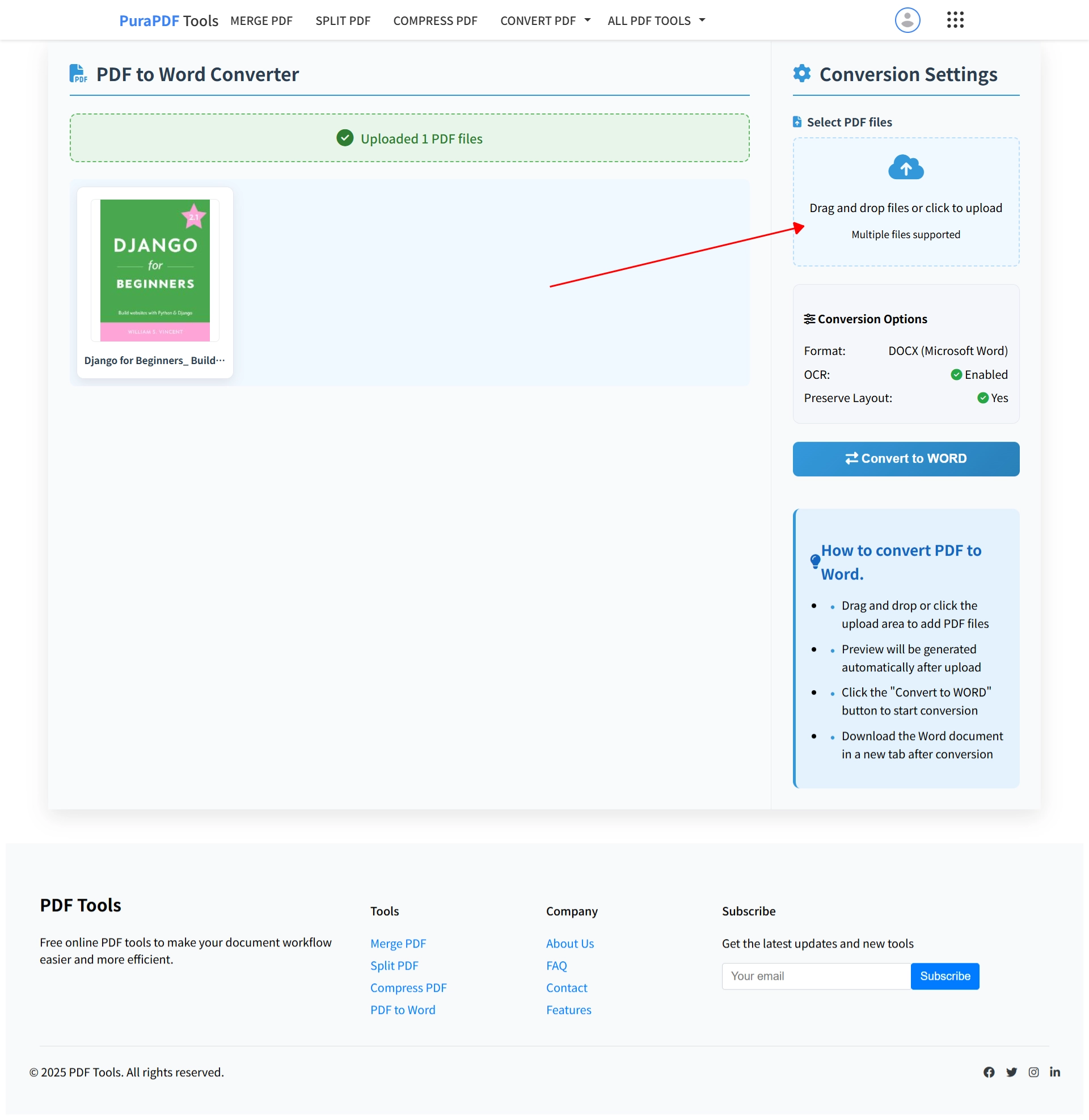
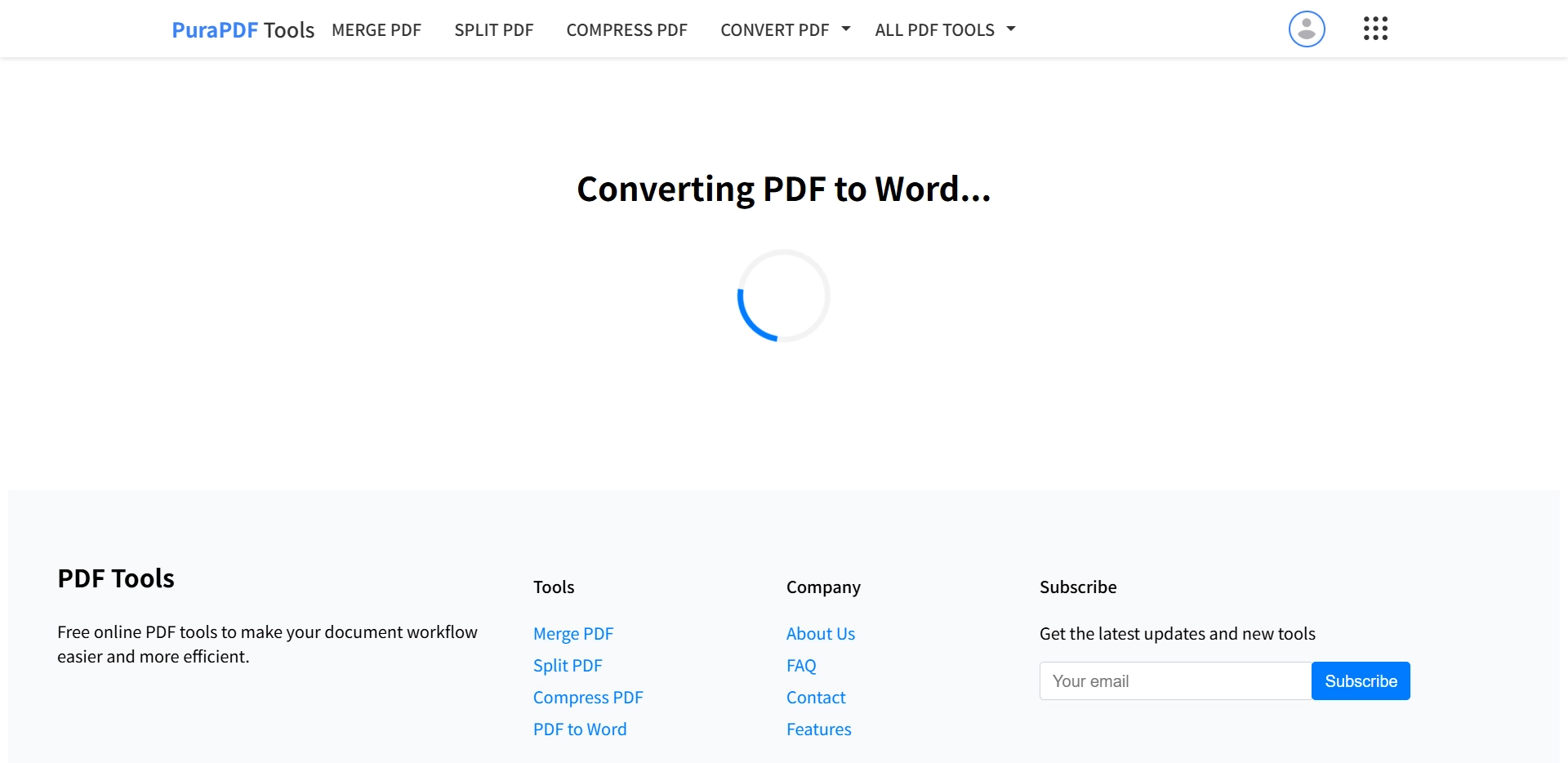
Click the “Convert to WORD” button. Processing occurs on PuraPDF's cloud infrastructure rather than your local machine, which means the conversion speed is independent of your computer's processing power.
4. Download the Editable Word Document
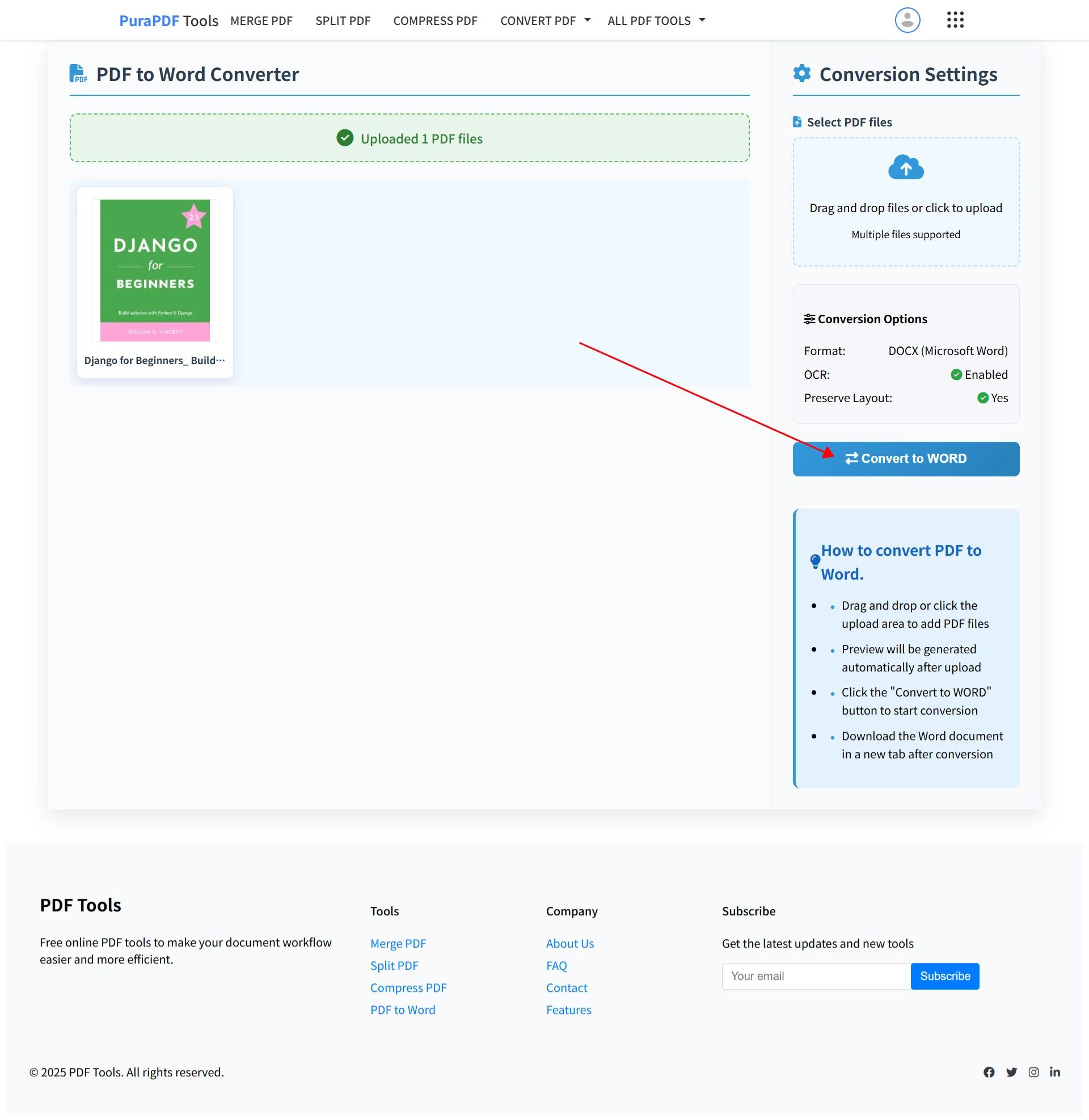
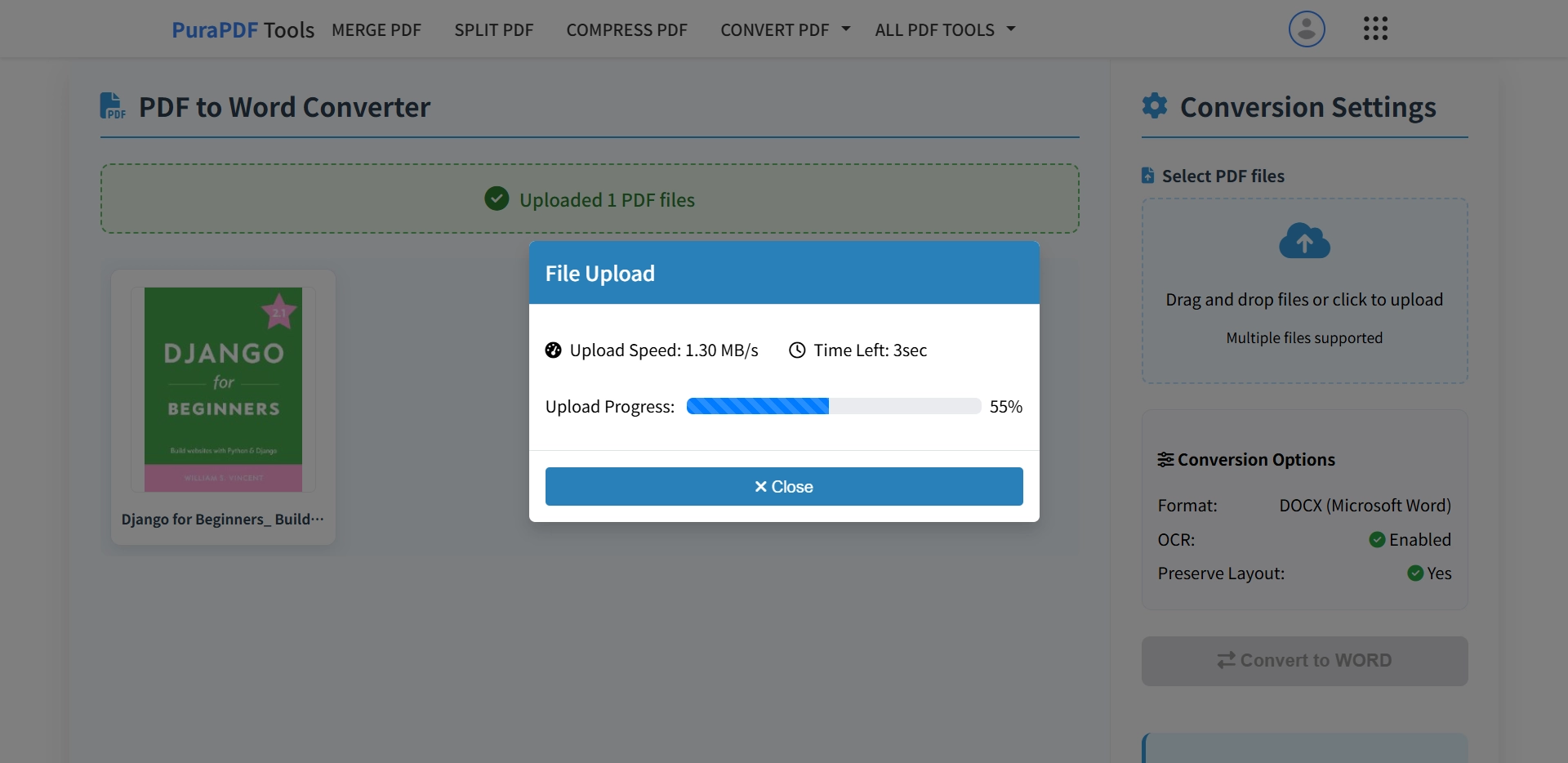
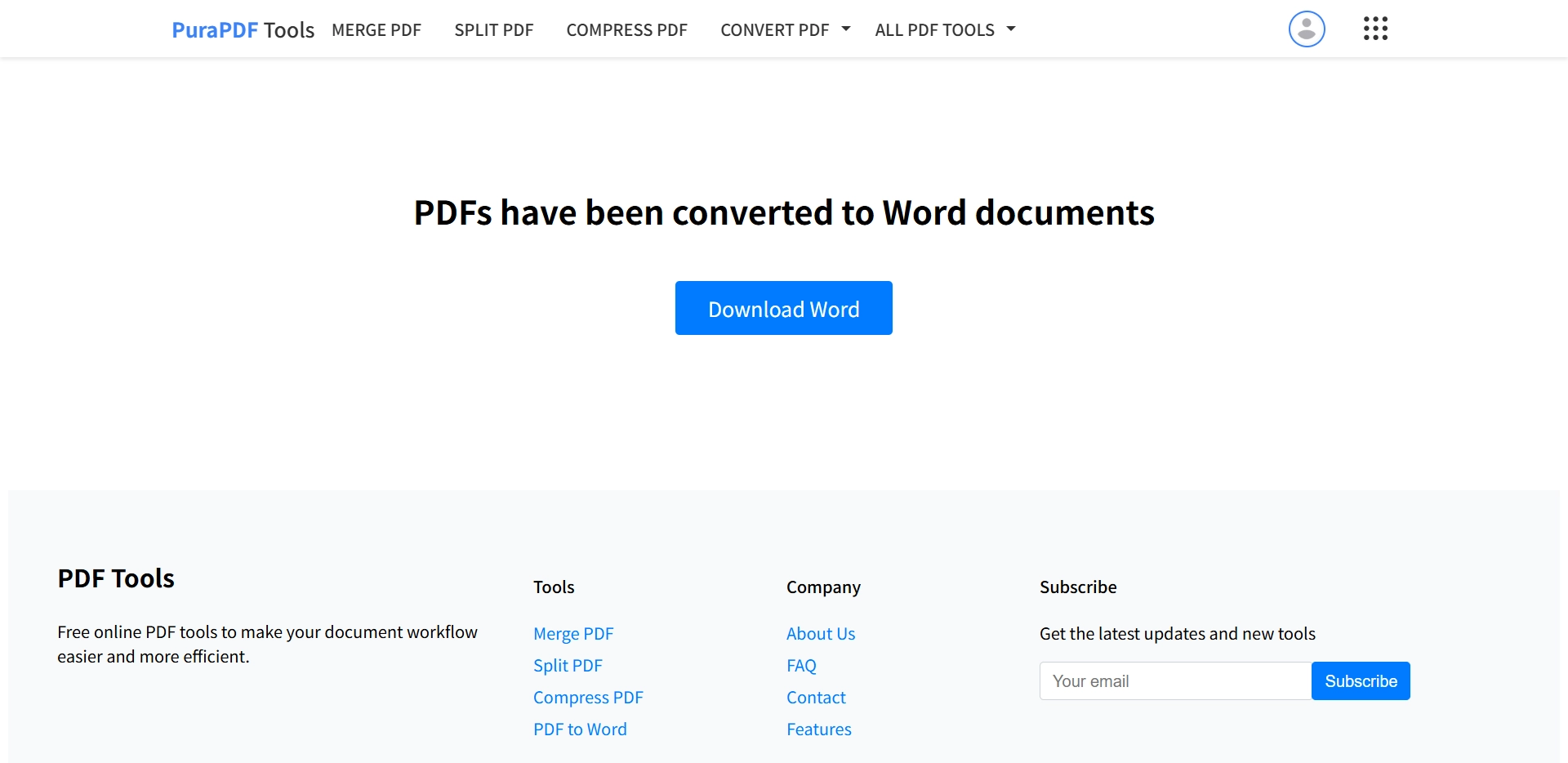
After the progress indicator completes, the DOCX file will be available for download. Save it to your device and open it with Microsoft Word or Google Docs. The document is fully editable and contains no superimposed watermarks. Any watermarks present in the output were already embedded in the original PDF file before upload.
Video Guide
For those who prefer to watch rather than read, here's a quick visual demonstration showing the entire workflow in under two minutes.
Frequently Asked Questions
Is the converted file really free of watermarks?
Yes. PuraPDF does not apply any branding, text, or image watermarks to the generated Word document. The file you download matches the original content.
Are there limitations on file size or quantity?
Free conversion is available for individual PDF files up to 10 MB in size. Users who need to process larger files (up to 20 MB) or convert multiple documents in a batch may consider the Premium plan.
How accurate is the formatting retention?
The conversion engine attempts to preserve original fonts, images, column structures, and table layouts. Digital PDFs created from office software typically maintain near‑identical formatting. Scanned image‑based PDFs rely on OCR technology, which may produce slight variations in line spacing or font selection. In such cases, a quick review and adjustment within Word is recommended.
Is it safe to upload confidential documents?
File transfers are encrypted using HTTPS. After conversion, the file is temporarily stored for a 24‑hour period to allow for download, after which it is automatically purged from PuraPDF's active servers. The service does not retain copies of user documents for any longer than necessary for delivery.
Does the converter work with password‑protected PDFs?
Yes. If the PDF requires a password to open, the interface will prompt you to enter it before processing begins. Once authenticated, the conversion proceeds normally. The resulting Word document will not be password‑protected.
Additional Free PDF Tools
After converting your document to Word format, you may find the following related tools useful. Each tool operates under the same principles: no watermarks, no mandatory sign‑up, and automatic file removal within 24 hours.