How to Convert PPT to PDF Online Free High Quality
You know the drill. You spend way too long getting every slide just right. The alignment is perfect, the fonts are dialed in. Then you email it over, and the client hits you with the dreaded question: "Why does all the text look squished?" Or you find out that the nice heading font you picked just defaulted to something generic on their iPad. Annoying, right?
Locking everything down as a PDF saves you from that headache. And you don't need to fire up Microsoft 365 or hunt down some sketchy installer. Here's the dead‑simple way to turn PPT or PPTX files into a clean, high‑res PDF using PuraPDF's online tool. No sign‑up hoops to jump through.
Why This Doesn't Turn Your Slides Into a Blurry Mess
A bunch of web converters out there basically take a screenshot of each slide and call it a day. That's how you end up with fuzzy text and logos that look like they have a bad case of the jaggies. This tool works differently. It reads the actual shape data tucked inside your .pptx file.
What does that mean for you? Even if the person opening the PDF doesn't have that specific font you used installed on their machine, the text stays crisp. Zoom in to 400% if you want—edges are still clean.
And you won't find one of those faint "Created with..." watermarks slapped across the footer either. Just a clean file, ready for the boardroom or the classroom.
What You'll Need
- Your presentation file:
.pptor.pptxworks fine. Free accounts top out at 10MB per file. (If you're pushing that limit, try resaving as a.pptx. Those tend to be a bit leaner and upload quicker than the old.pptformat.) - A connection that doesn't drop: That's it. Even tethered to your phone on the train, you're good to go.
Steps to Convert PPT to PDF Online
1. Open the Converter
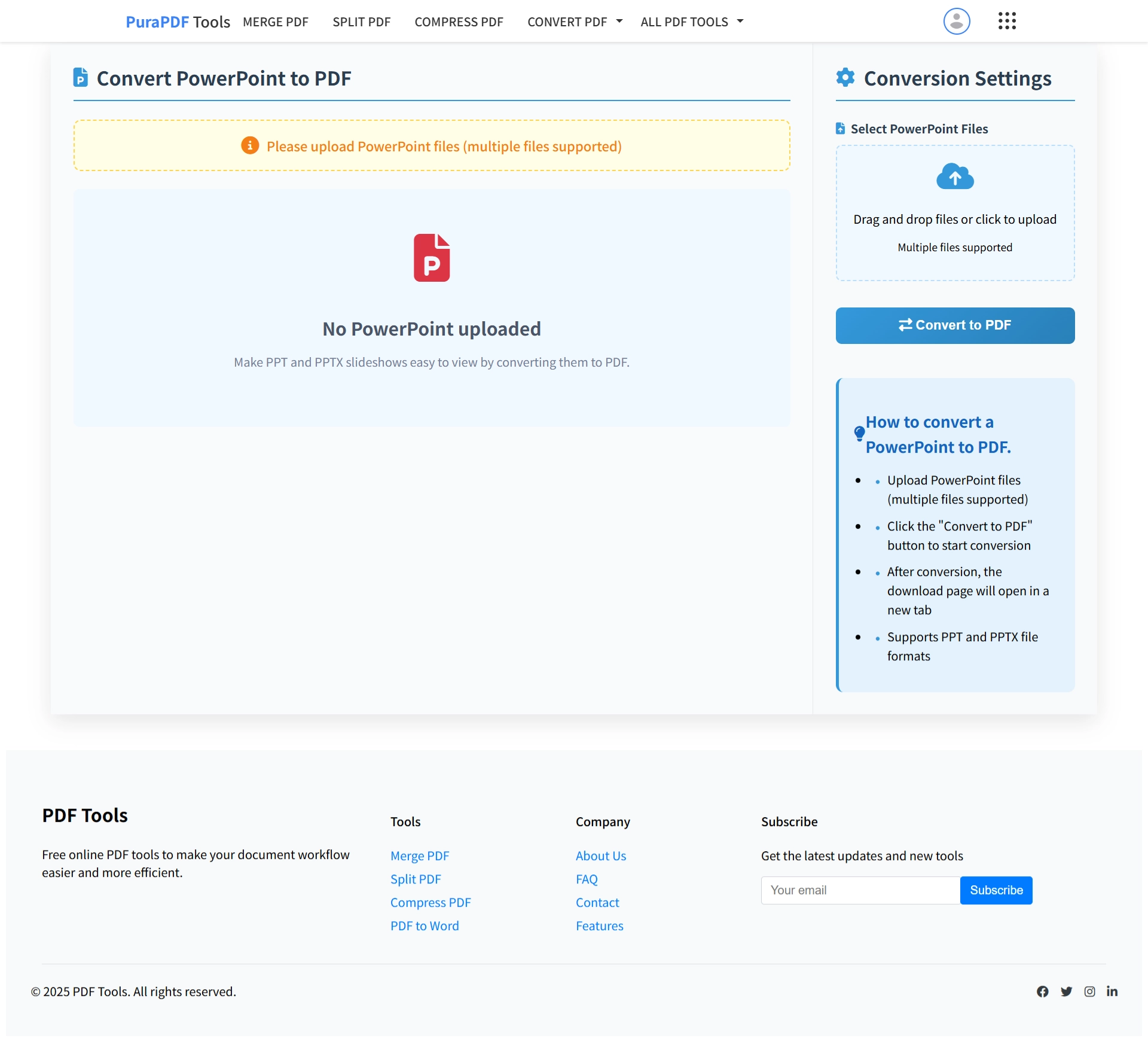
Head straight to the PuraPDF PowerPoint to PDF tool. The page keeps it simple—big upload box right there in the middle. Works fine on a laptop or while you're squinting at your phone.
2. Drop Your File In
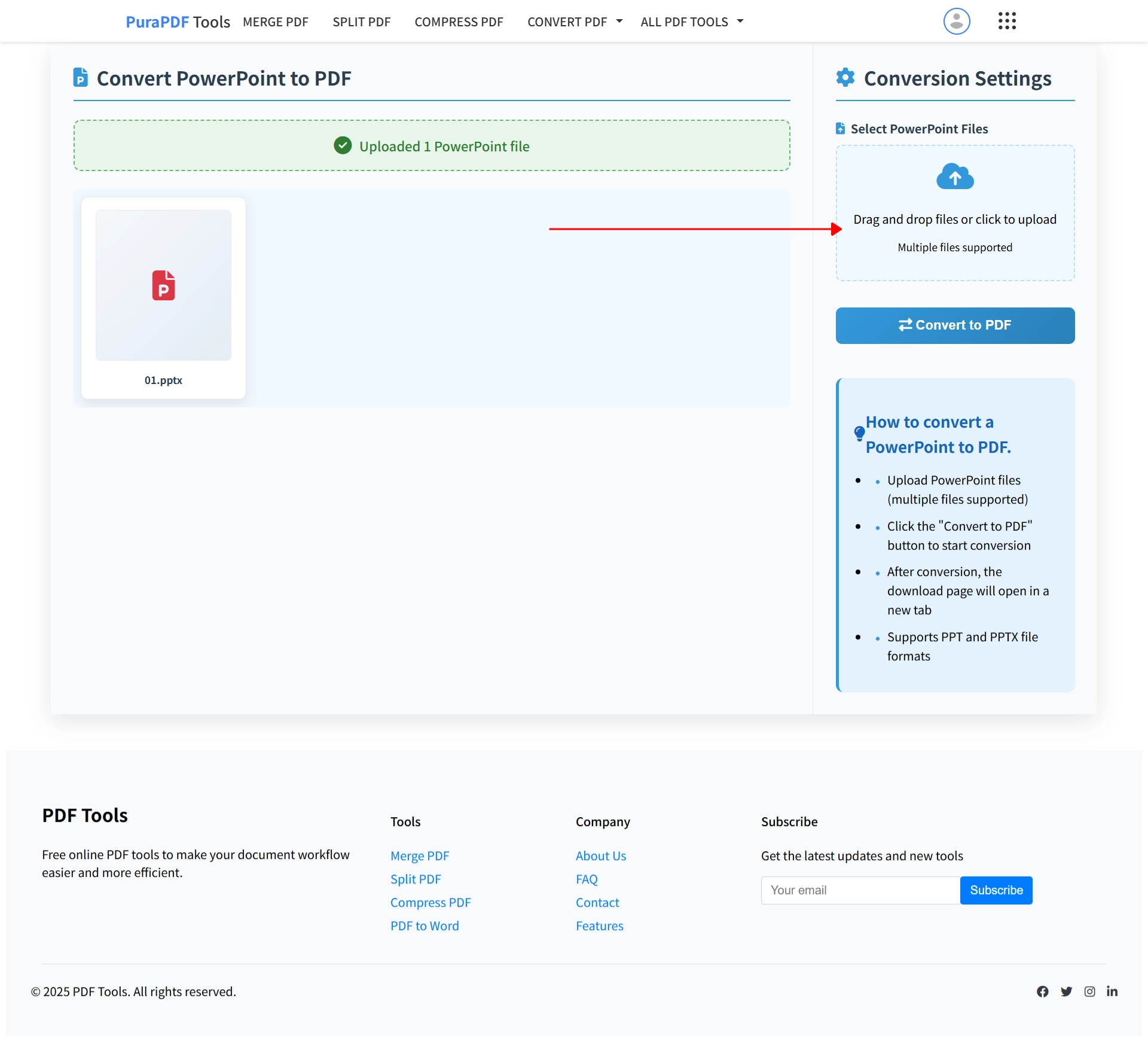
Grab that PPT or PPTX file and drag it onto the page. Or click the box to browse. If you've got a whole semester of lectures piled up, you can even grab a handful of files and drop them all at once.
3. Hit Convert
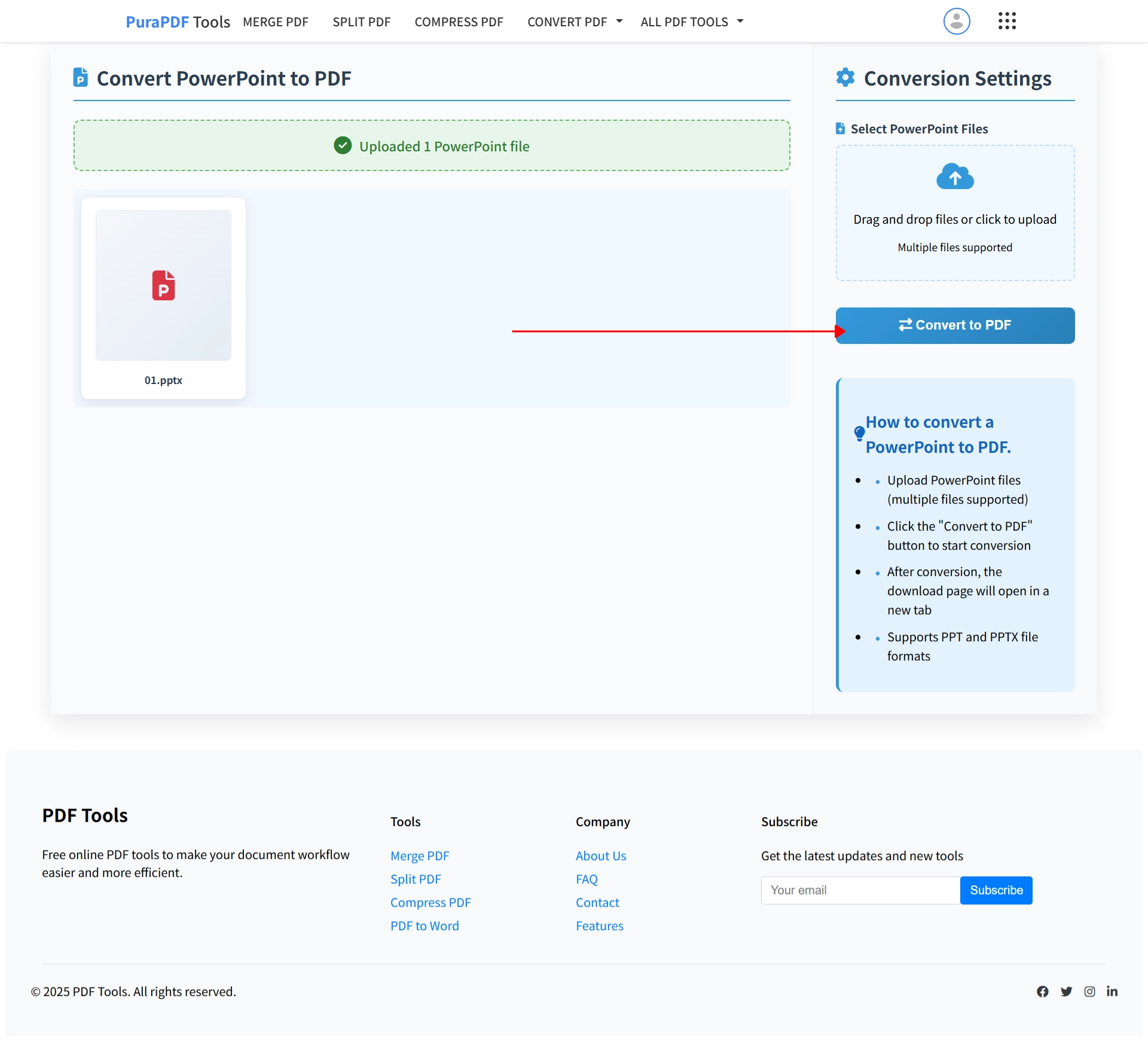
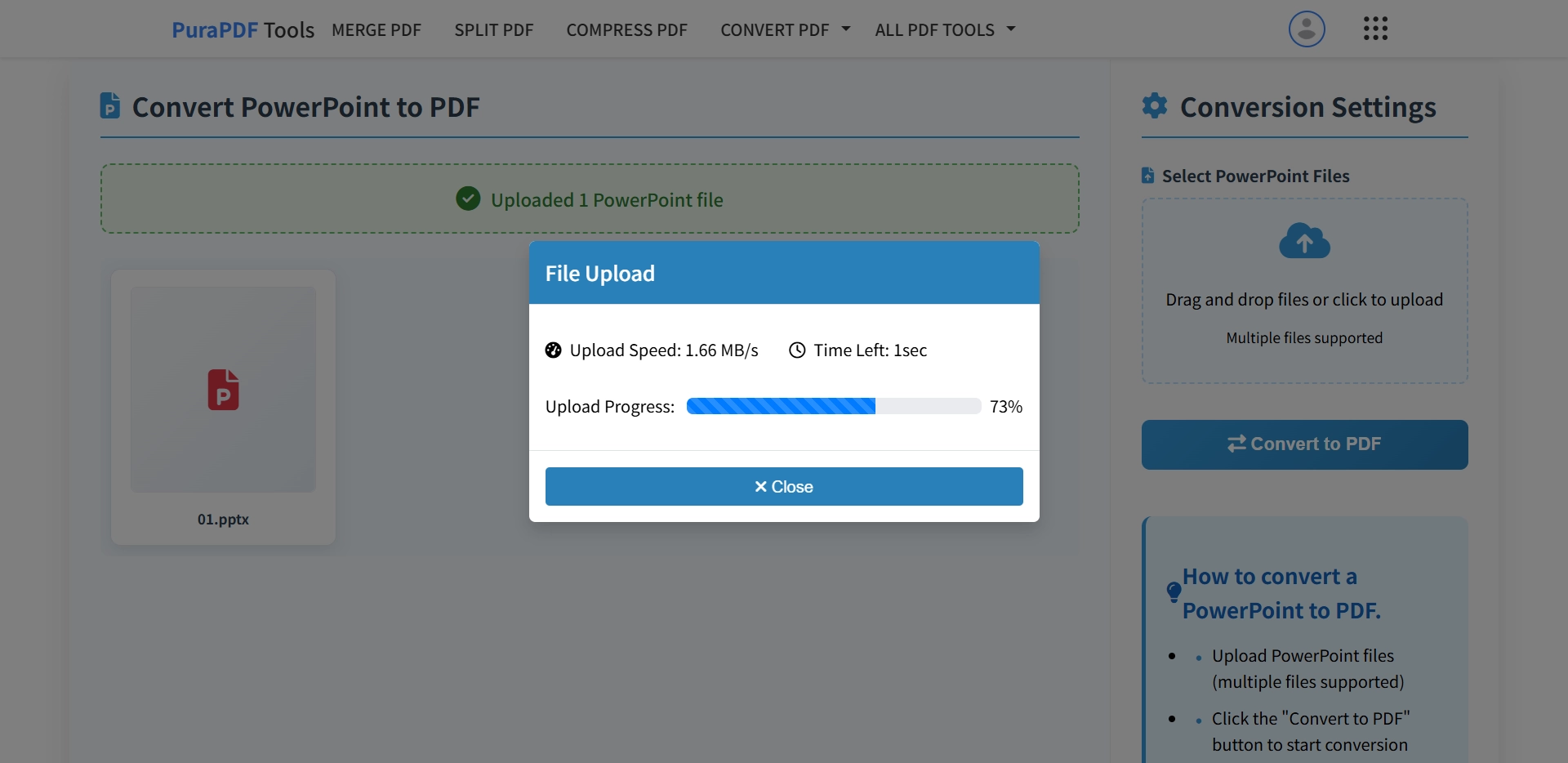
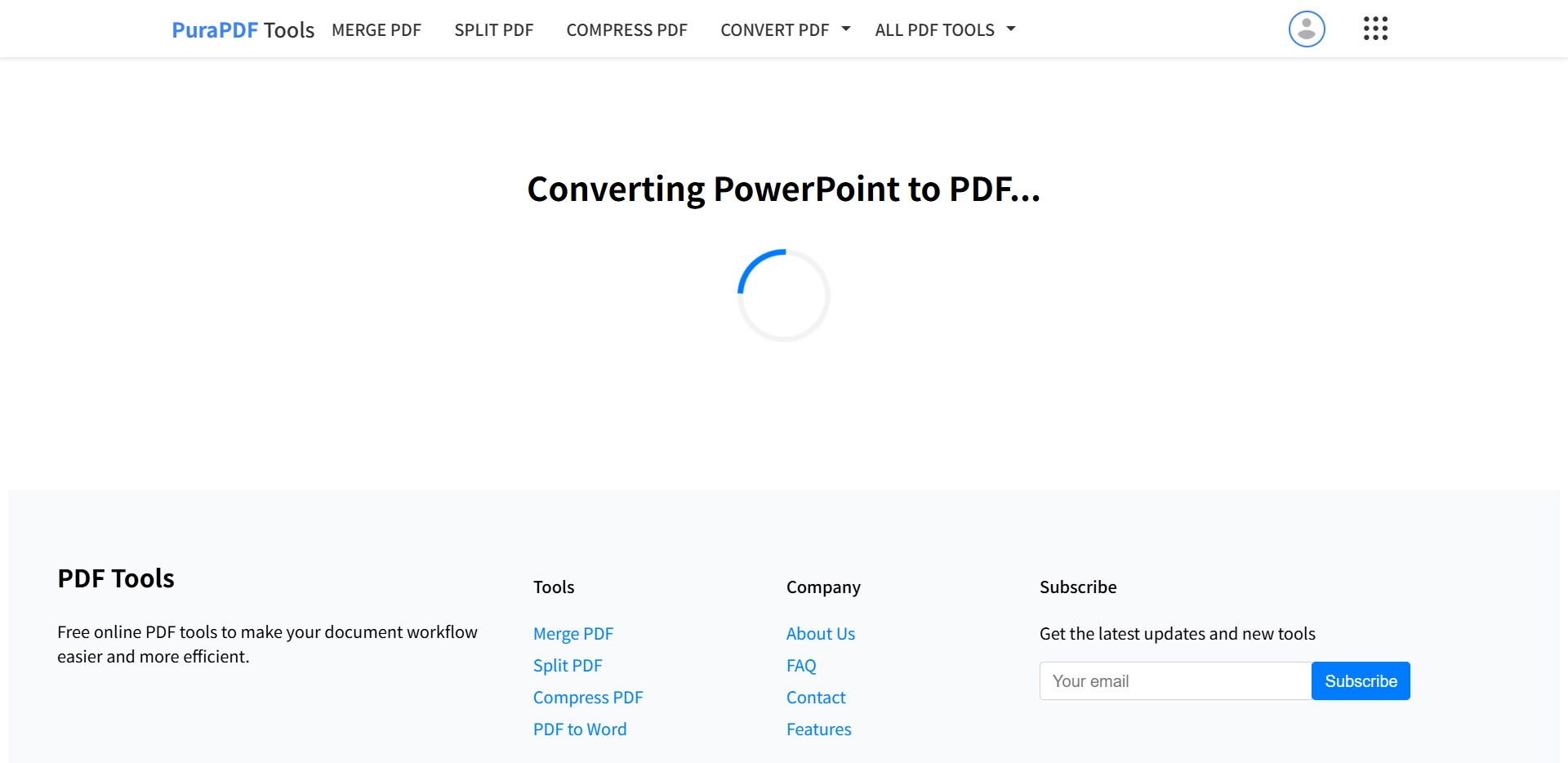
Click "Convert to PDF" and let it run. The tool's chewing through the background images and charts, making sure nothing drifts out of place. It's usually done before you even get a chance to take a sip of coffee.
4. Grab the PDF
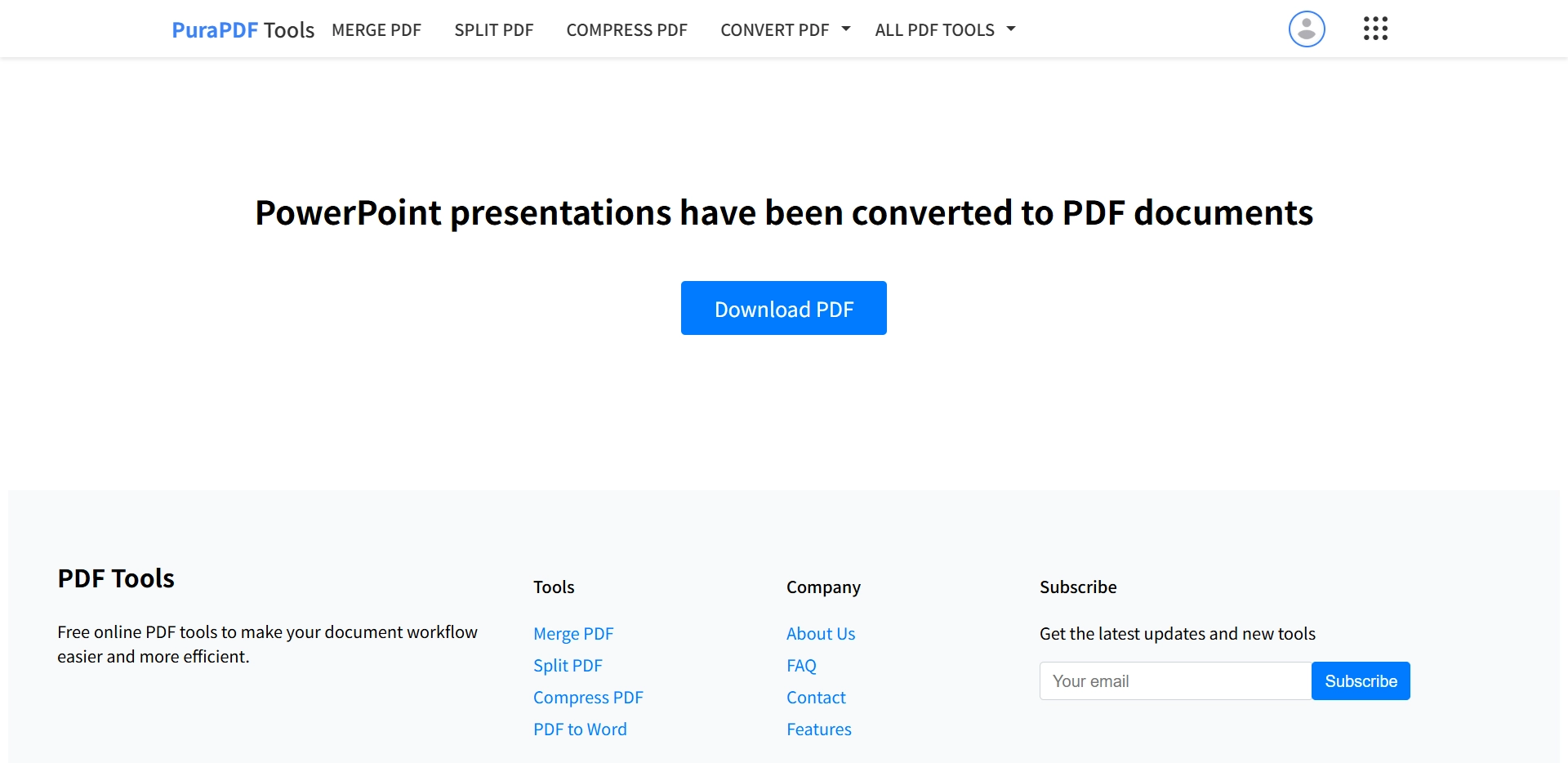
Once it finishes, the download starts on its own. Save the PDF wherever you stash final copies. Notice anything? No watermark lurking in the corner. Just the slides you put together.
Quick Fixes (When Things Get Stubborn)
- Upload stuck? That 10MB cap is usually the culprit. Double‑check the file size. If it's an old
.pptfile from way back, save a fresh copy as.pptx—often knocks off a few MB. - Password protected? The tool will ask you for it. You'll need to know it, though. It's not a lock‑pick.
- Looks weird in Chrome? Try Edge or Firefox real quick. Sometimes a random extension messes with the upload button.
- Custom fonts acting funny? Before you upload, pop open PowerPoint and go to File > Options > Save > Embed fonts in the file. Doing that little bit of housekeeping upfront pretty much guarantees everything looks right.
Video Walkthrough
Prefer to watch instead of reading? This short clip runs through the whole thing in about half a minute.
Frequently Asked Questions
Q1: Is it actually free?
Yeah. You can use the main converter as much as you want without pulling out a credit card. No watermarks on the PDF you download.
Q2: Will it mess up how my slides look?
We built the engine to read the raw data, not just take a picture. That means fonts, graphs, and images stay locked in place. If your PowerPoint has a gradient background, the PDF keeps it.
Q3: Which file types work with this?
Both the old .ppt and the newer .pptx are fully supported.
Q4: What's the size limit for free users?
Free users get 10MB per file. That covers the vast majority of slide decks that aren't crammed with massive video files. Need more breathing room? Premium bumps you to 20MB per file.
Q5: Can I convert a bunch of files at once?
Yep. Drag a whole folder over if you want. On the free plan, you'll tackle them one after the other. Premium lets you batch convert up to 10 files at a time.
Q6: Does this work on my phone or tablet?
For sure. The buttons are big enough for thumbs, and it works on iOS and Android browsers without any fuss.
Explore Other PDF Tools
Since you're already dealing with documents, here are a few other ways PuraPDF can shave some time off your day:
- Compress PDF – Squeeze that massive file down to something email‑friendly.
- Word to PDF – Lock down contracts and reports.
- Excel to PDF – Make those pivot tables readable by anyone.
- PDF to Word – Need to tweak an old PDF? Pull the text out cleanly.
- Merge PDF – Combine chapters, invoices, or scans into one tidy file.